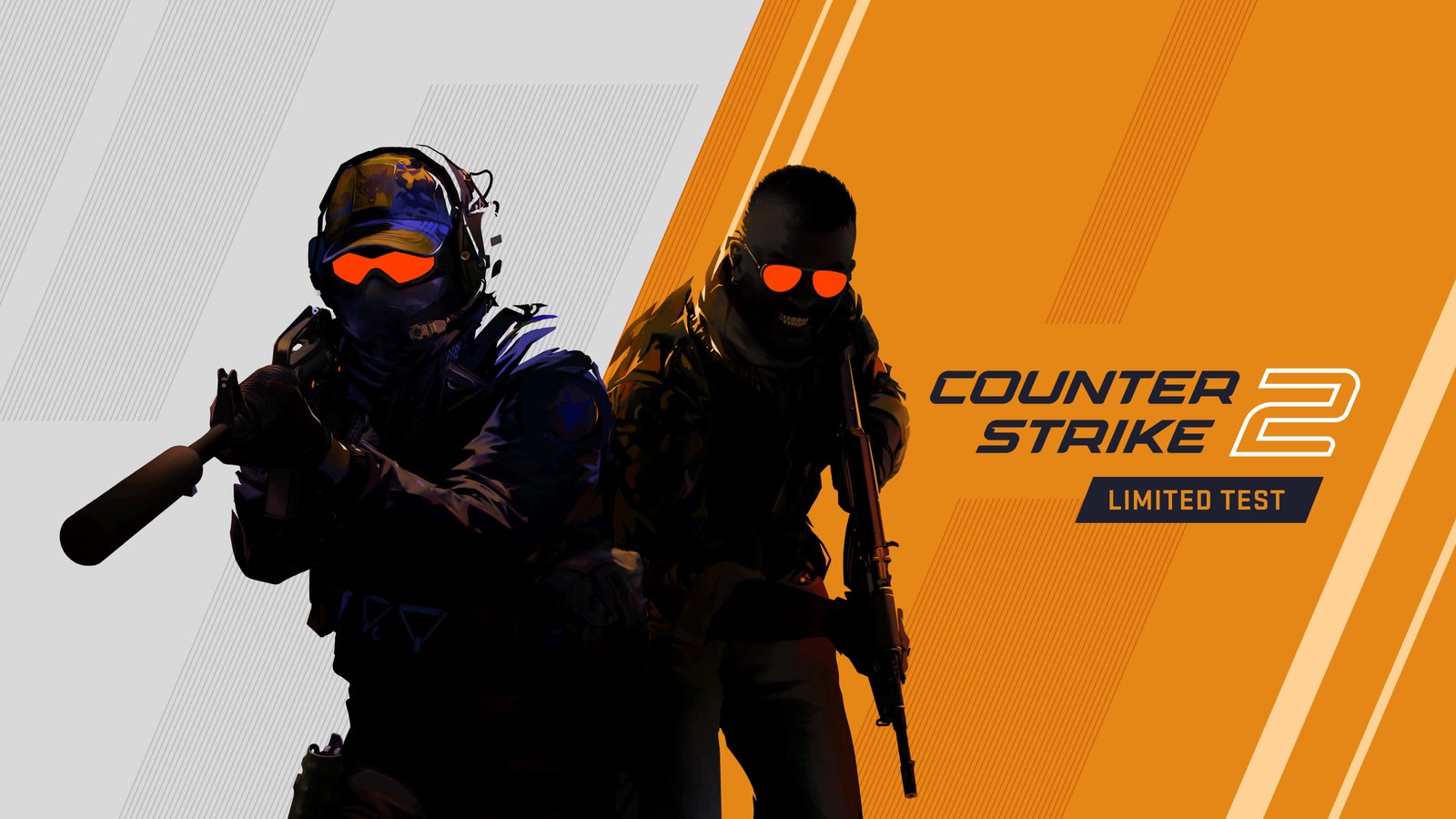
Best CS2 Settings for Max FPS and Low Input Lag: Visual Guide (2026)

Counter-Strike 2 official
Best CS2 Settings for Max FPS and Low Input LagCounter-Strike 2 — Valve

TOTOT.AE | VISUAL GUIDE FOR GAMERS

Best CS2 Settings for Max FPS and Low Input Lag

Every Advanced Video setting with visuals, what the pros actually use, and before-and-after test numbers.

🎯 Pro settings📊 Real test numbers📷 Visual walkthrough

In Counter-Strike 2 every frame and every millisecond counts in a duel. But there is a catch: lower isn’t always better, because settings like shadows can reveal where an enemy is. We went through the menu setting by setting, with what the pros use and real test numbers.

204 vs 110FPS on Low vs High on an RTX 4050 laptop — Notebookcheck
70%Of 40 pros enable Boost Player Contrast — Dust2.us
HighShadow quality most pros keep, because shadows reveal enemies
8 GBRAM is the minimum on Steam

Can My PC Run CS2?

These are the official minimum requirements from the game’s Steam page:

🧠CPU4 hardware threads, e.g. Intel Core i5 750 or higher.
🧩RAM8GB minimum.
🎮GPU1GB or more, DirectX 11 compatible with Shader Model 5.0.
💾Storage85GB free, ideally on an SSD.

Basic Video Settings

Open Settings → VIDEO → Video:

GAMEAUDIOVIDEOKEYBOARD / MOUSE
SettingValue
Display ModeFullscreen
ResolutionNative or 1280×960
Refresh RateYour monitor maximum
Heads up: a Steam player found the game reset Refresh Rate to 60Hz after an update, so check it after every patch.
📷 Illustration of the CS2 VIDEO menu
About 1280×960: 75% of the 40 pros in Dust2.us’s survey play on it (4:3 stretched). It’s personal preference: the image is softer, but player models look wider. Try it and decide.

Advanced Video Settings (With Visuals)

This is the menu that really matters. Green is what we recommend, and the bars show how much FPS a setting costs when set high:
GAMEAUDIOVIDEOKEYBOARD / MOUSE
SettingValueFPS cost
Boost Player ContrastEnabled
Wait for Vertical SyncDisabled
Multisampling Anti-Aliasing Mode4x MSAA / None
Global Shadow QualityHigh
Dynamic ShadowsAll / Sun Only
Model / Texture DetailLow
Texture Filtering ModeBilinear
Shader DetailLow
Particle DetailLow
Ambient OcclusionDisabled
High Dynamic RangeQuality
FidelityFX Super ResolutionDisabled
NVIDIA Reflex Low LatencyEnabled + Boost
🔴 Heavy FPS cost   🟡 Medium   🟢 Light — estimate from tests and guides. On a weak PC: MSAA None and Dynamic Shadows Sun Only.
📷 Illustration of VIDEO → Advanced Video in CS2
👤Boost Player ContrastMakes player models stand out from the background at little cost. Always Enabled.
🌑Shadows on HighAn enemy’s shadow can appear before they do, so this is information, not just looks.
✨Shader and Particle LowLess clutter from smokes and explosions, and more FPS.
⚡Reflex + BoostLowers system latency; needs an NVIDIA GeForce 900 series or newer.
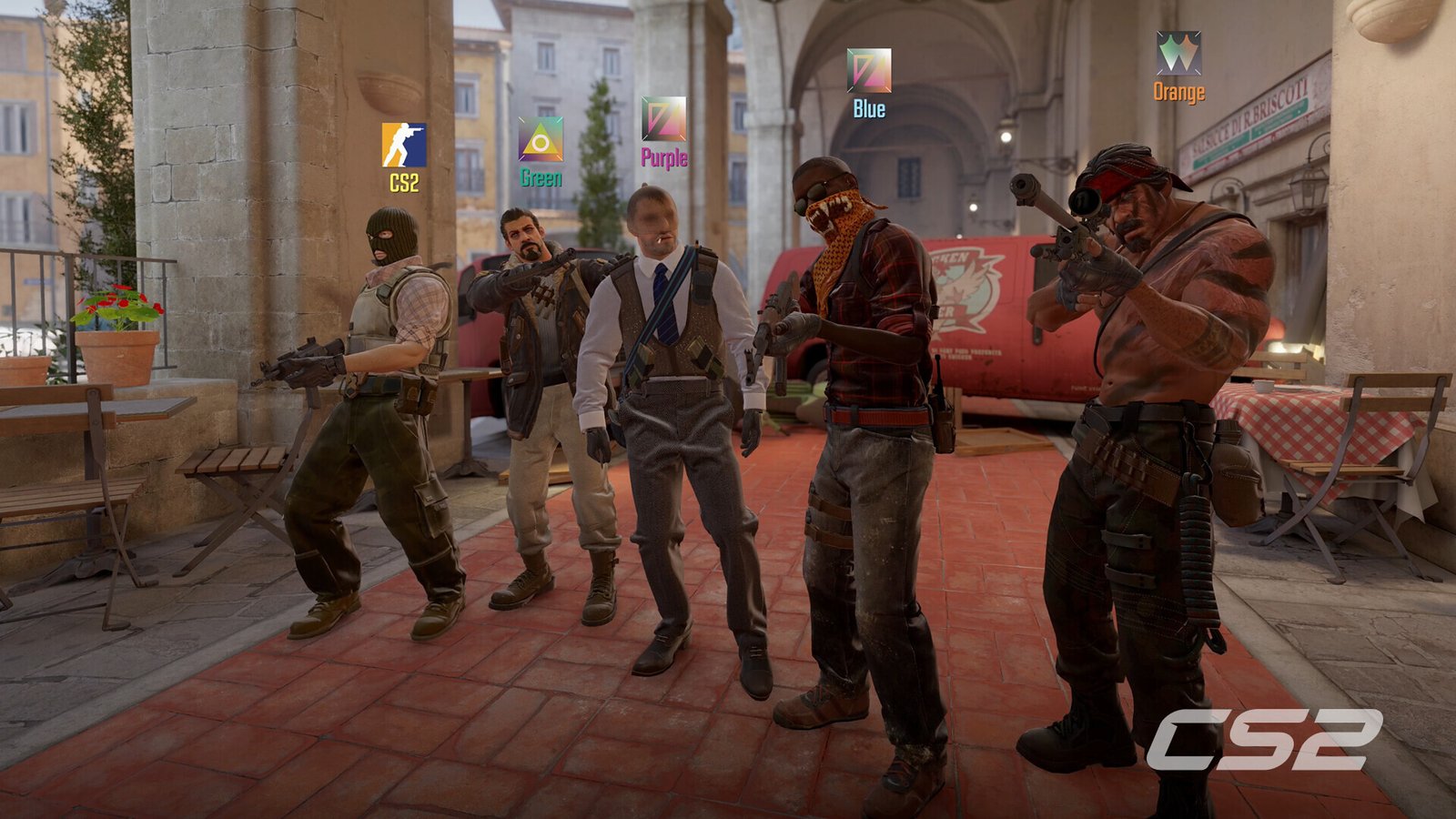
Counter-Strike 2 screenshot© Valve
📷 Official CS2 screenshot: lighting and shadows on the new maps reveal player movement, which is why pros don’t drop them to the minimum.

Before and After in Numbers

🧪 Real testRadeon 780M integrated graphics — 1080p
High settings
34.7 FPS
Low settings
102.4 FPS
From unplayable to about 100 FPS
Source: Notebookcheck — CS2 laptop and desktop benchmark review.
🧪 Real testRTX 4090 with Ryzen 9 7950X — Low vs Very High
Very High
179 FPS
Low
295 FPS
Even the fastest PCs benefit
Source: PC Optimized Settings — the same test found going from 2x to 4x MSAA costs about 10% FPS.
🎬 VIDEOBest CS2 settings for 2026 with an FPS test (FPS Capital)

What Do the Pros Use?

In Dust2.us’s survey of 40 professional players (including donk), these were the numbers:

🏆 SurveySettings of 40 pro players
1280×960 resolution
75%
Boost Player Contrast enabled
70%
NVIDIA Reflex enabled
60%
Source: Dust2.us — the most common remaining settings were Shadows High, Dynamic Shadows All, and 8x MSAA.
❌ MythEverything on Low = best performance in matches.
✅ RealityPros keep shadows on High because they reveal enemies. Lower the rest and keep shadows.
❌ MythCommands like -tickrate and cl_interp improve hit registration.
✅ RealityCS2 runs on 64 tick with sub-tick, and these commands don’t work in it.

Console Commands and FPS Counter

The old net_graph command was removed in CS2 and replaced by the Telemetry HUD. Turn it on in Settings → GAME → Telemetry → Show frame time and FPS = Always. These commands still work:

CS2 — Developer Console
] cl_showfps 1
  # simple on-screen FPS counter
] fps_max 0
  # uncapped FPS (use with Reflex)
Launch Options: -fullscreen +cl_showfps 1
net_graph 1  →  Unknown command
📷 Example console illustration — enable it in Settings → GAME → Enable Developer Console, then press ~
Open launch optionsIn your Steam library, right-click Counter-Strike 2 → Properties → General → Launch Options.
Add the commandsFor example -fullscreen +cl_showfps 1. The benefit of -novid and -high in CS2 is unconfirmed, so there’s no need for them.
Test and compareUse the same Deathmatch map before and after any change.

Player Fixes for Stutter

SteamSteam player

Deleted the directx_installer folder, cleared the shader cache and verified game files; Deathmatch stutter went away, though FPS didn’t increase.

Stutter goneSource ↗
SteamCommunity guide on Steam

Clearing shader cache and verifying files: one AMD player reported a big FPS gain, while another said it made things worse.

Results varySource ↗
RedditPlayer on r/GlobalOffensive

Had 200+ FPS but motion felt choppy; switching MSAA to 8x made the game feel very smooth for them.

Personal experienceSource ↗
SteamSteam player (240Hz monitor)

Found the game had reset itself to 60Hz after an update, which explained why it felt sluggish.

Check your HzSource ↗
🎬 VIDEOCS2 settings explained for FPS, latency and smoothness (Biley)

If the problem is your system rather than the game, see our Windows 11 FPS guide, and if you’re getting network lag, see our guide to fixing high ping.

TOTOT PC CARE

Do It in One Click with Totot PC Care

Clean junk files, disable startup bloat, switch to the best power plan, and watch CPU/GPU temperatures in real time — all from one simple Windows tool.

Get Totot PC Care — 39 AED →

✅ Your settings at a glance

  • Fullscreen + max Hz
  • Boost Player Contrast: Enabled
  • VSync: Disabled
  • Shadows: High
  • Shader / Particle: Low
  • Ambient Occlusion: Disabled
  • FSR: Disabled
  • Reflex: Enabled + Boost
  • Telemetry FPS counter
  • fps_max 0

Frequently Asked Questions

What are the best CS2 settings for FPS?

Set Shader Detail, Particle Detail and Model/Texture Detail to Low, disable Ambient Occlusion and VSync, and enable Reflex. In PC Optimized Settings’ test, going from Very High to Low raised FPS from 179 to 295.

Why do pros keep shadows on High?

Because an enemy’s shadow can show before they come around a corner, so shadows give you information, not just a nicer image.

Does net_graph work in CS2?

No, it was removed. Use the Telemetry HUD in Settings → GAME, or the cl_showfps 1 console command.

What are the minimum requirements for CS2?

According to the official Steam page: Windows 10, a CPU with 4 threads such as a Core i5 750, 8GB RAM, a 1GB DirectX 11 GPU, and 85GB of storage.

TOTOT PC CARE

Do It in One Click with Totot PC Care

Clean junk files, disable startup bloat, switch to the best power plan, and watch CPU/GPU temperatures in real time — all from one simple Windows tool.

Get Totot PC Care — 39 AED →

Gear up for your next match

Lightweight mice, mechanical keyboards and 240Hz monitors are available on totot.ae with interest-free installments.

Shop gaming gear →
Leave a Reply

شاركنا رأيك بالمقالة
كن أول من يقيم هذه المقالة

Your email address will not be published. Required fields are marked *

Comment

Name

Home Shop Categories 0 Wishlist Account
Need Help!
Main Menu
Shopping Cart (0)

No products in the cart. No products in the cart.

Main Menu
Shop by Category See All