Free, tested steps with a picture for every setting, plus real before-and-after results from benchmarks and players.
💸 100% free⏱ 15 minutes📷 Step-by-step visuals🧪 Real test results
Boosting FPS isn’t magic, and you don’t need a new graphics card to play smoothly. Most PCs run below their real potential because of default Windows settings, background apps, outdated drivers, and RAM running slower than its rated speed. We’ve put every step in one place with a visual for each setting, plus numbers from real tests and player experiences so you know what to actually expect.
+20%FPS gain after enabling XMP in Shadow of the Tomb Raider — The FPS Review test
+10 FPSAverage gain from Game Mode in Red Dead Redemption 2 — MuyComputer test
+18 FPSFrom dropping shadows to Low in Warzone — a player test shared on Reddit
FPS (frames per second) is how many images your PC draws every second. The higher it is, the smoother the motion and the faster your reactions:
🐢Under 30 FPSVisible stutter and frustrating gameplay. Work through the steps below.
🙂60 FPSSmooth and great for story games like RDR2 and GTA.
⚡144 FPS and upThe target for competitive games like Valorant, CS2 and Fortnite.
Important: On a 60Hz monitor you’ll only ever see 60 frames, even if the counter says 200. Extra frames above your refresh rate only help by lowering input lag.
6 Windows 11 Settings That Increase FPS (With Visuals)
Open Settings with Win+I and work through these in order. Each picture shows exactly where to click.
1. Turn on Game Mode
Windows prioritizes your game and stops updates from installing while you play.
Settings—□✕
System
Bluetooth & devices
Network & internet
Personalization
Apps
Gaming
Windows Update
Gaming›Game Mode
Turn this on ✓
Game ModeOptimize your PC for play by turning things off in the background
On
📷 Illustration of the Windows 11 Settings screen — the exact option is highlighted in pink — Settings > Gaming > Game Mode
🧪 Real testHow much does Game Mode really add?
Red Dead Redemption 2
+10 FPS
Other games in the test
+1 → +6 FPS
Most useful when you are just below 60 FPS and want to hold it
Source: MuyComputer — Windows 11 with an RTX 3090 at 1080p low settings. Results vary by PC.
🎬 VIDEOHands-on test: does Game Mode actually make a difference? (CyberCPU Tech)
2. Set Power Mode to Best Performance
The default balanced mode slows the CPU down to save power. On a laptop, keep it plugged in.
Settings—□✕
System
Bluetooth & devices
Network & internet
Personalization
Apps
Gaming
Windows Update
System›Power & battery
Screen, sleep, & hibernate timeouts
Never
Pick this ✓
Power modeOptimize your device based on power use and performance
Best performance
📷 Illustration of the Windows 11 Settings screen — the exact option is highlighted in pink — Settings > System > Power & battery > Power mode
3. Force the Game to Use the Powerful GPU
On laptops with two GPUs, games sometimes run on the weak integrated chip without you noticing. Click Browse, pick the game’s .exe, then Options and choose High performance.
Settings—□✕
System
Bluetooth & devices
Network & internet
Personalization
Apps
Gaming
Windows Update
System›Display›Graphics
Custom options for appsAdd a desktop app
Browse
Dedicated GPU ✓
VALORANTGPU preference
High performance
📷 Illustration of the Windows 11 Settings screen — the exact option is highlighted in pink — Settings > System > Display > Graphics
From the same Graphics page, open Advanced graphics settings. HAGS is required for Frame Generation on NVIDIA RTX 40 and 50 cards. A restart is needed.
Settings—□✕
System
Bluetooth & devices
Network & internet
Personalization
Apps
Gaming
Windows Update
Display›Graphics›Advanced graphics settings
Turn on, then restart
Hardware-accelerated GPU schedulingReduce latency and improve performance. Changing this setting requires a restart.
On
📷 Illustration of the Windows 11 Settings screen — the exact option is highlighted in pink
5. Turn Off Background Recording
Recording the last few minutes of gameplay runs constantly and eats into performance.
Settings—□✕
System
Bluetooth & devices
Network & internet
Personalization
Apps
Gaming
Windows Update
Gaming›Captures
Turn this off ✕
Record what happenedRecord the last few minutes of gameplay in the background
Off
Captures location
Open folder
📷 Illustration of the Windows 11 Settings screen — the exact option is highlighted in pink — Settings > Gaming > Captures
6. Reduce Visual Effects
Open RunPress Win+R, type sysdm.cpl and press Enter.
Open Performance settingsOn the Advanced tab, click Settings under Performance.
Choose best performanceSelect Adjust for best performance and click OK. Very helpful on low and mid-range PCs.
What Players Say About These Settings
ForumTechPowerUp forum
Members found Game Mode makes only a small difference for them, and their advice was simple: try it and compare yourself.
Takeaway: Game Mode and Best performance power mode are safe to leave on. Enable HAGS if you have an RTX 40 or 50 card and want Frame Generation; if a specific game stutters, turn it off and compare.
Clean Up the Background Step by Step
The most common cause of sudden FPS drops is apps running in the background without you noticing.
Disable startup appsPress Ctrl+Shift+Esc to open Task Manager, go to Startup apps, right-click and Disable anything you don’t need.
Close the browser before gamingChrome with lots of tabs eats RAM and CPU, especially on 8GB machines.
Delete temp filesPress Win+R, type %temp% and delete the contents, or turn on Storage Sense in Settings.
Keep free spaceLeave at least 15% of your SSD free; a full drive slows down game loading.
🎬 VIDEOLinus Tech Tips tests how much background bloat really affects FPS
TOTOT PC CARE
Do It in One Click with Totot PC Care
Clean junk files, disable startup bloat, switch to the best power plan, and watch CPU/GPU temperatures in real time — all from one simple Windows tool.
First, update your drivers through the NVIDIA App or AMD Adrenalin. Then apply the settings highlighted in green:
NVIDIA Control PanelManage 3D settings
SettingRecommended
Power management modePrefer maximum performance
Low Latency ModeOn
Vertical syncOff
Texture filtering – QualityHigh performance
If the game supports NVIDIA Reflex, enable it in-game instead of Low Latency Mode.
📷 Illustration of NVIDIA Control Panel — right-click the desktop → NVIDIA Control Panel
AMD Software: AdrenalinGamingGraphics
SettingRecommended
Radeon Anti-LagEnabled
Radeon Super ResolutionEnabled
Wait for Vertical RefreshOff, unless app specifies
Radeon Super Resolution helps in games that don’t have FSR built in.
📷 Illustration of AMD Adrenalin — Gaming → Graphics
XMP and Temperatures: The Biggest Free Hardware Win
Enable XMP or EXPO in the BIOS
Most RAM runs below its rated speed by default. Enabling the memory profile in the BIOS runs it at full speed, one of the biggest free gains, especially in CPU-heavy games.
🧪 Real testBefore and after XMP — Shadow of the Tomb Raider
Default settings
100%
With XMP I
+20%
With XMP Tweaked (ASUS boards)
+27%
+20% FPS from one BIOS setting
Source: The FPS Review — tested on Intel Core Ultra with an ASUS Z890 board and a BIOS update. Relative numbers; results depend on your PC and RAM.
MainAi TweakerAdvancedBoot
OptionValue
Ai Overclock TunerXMP I
DRAM FrequencyAuto
Save & ExitF10
The name varies by brand: XMP on Intel platforms, EXPO or DOCP on AMD. Look for “Memory Profile”.
📷 Illustration of a BIOS screen — press Del or F2 right as the PC starts
Watch Your Temperatures, Especially in UAE Summers
When the CPU or GPU gets too hot, it slows itself down (thermal throttling) and FPS suddenly drops a few minutes into a session.
🟢Under 80°CGreat temperatures while gaming.
🟡80–90°COK on laptops, but clean the fans soon.
🔴Over 90°CLikely throttling: clean the dust and replace the thermal paste.
SteamSteam player (laptop)
His FPS dropped from 60 to 30–40 after 5–10 minutes, with temperatures hitting 93°C. He opened the laptop, cleaned out the dust, and temperatures settled mostly between 35 and 60°C.
The visual below shows a typical graphics menu found in most games. Green is what we recommend, and the colored bars show how much FPS a setting costs when it’s set high:
DisplayGraphicsAdvanced
SettingValueFPS cost
Upscaling (DLSS / FSR / XeSS)Quality
Ray TracingOff
Shadow QualityMedium
Volumetric FogLow
Ambient OcclusionLow
Texture QualityHigh
Motion BlurOff
V-SyncOff
🔴 Heavy FPS cost 🟡 Medium 🟢 Light — lower the red ones first.
📷 Illustration of a typical graphics menu — names are similar across most games
RedditPlayer test on Reddit
A player lowered shadow quality in Warzone from High to Low and gained about 18 FPS instantly, without a big visual difference in fights.
❌ MythFree “game booster” apps from the internet raise FPS by 200%.
✅ RealityMost of them disable important Windows services, and some contain malware. The steps in this guide give you the real gains safely.
❌ MythGame Mode doubles your FPS.
✅ RealityTests show +1 to +10 FPS depending on the game. Useful, but not magic.
❌ Myth200 FPS on a 60Hz monitor means a smoother picture.
✅ RealityThe monitor only shows 60. The only benefit is slightly lower input lag.
❌ MythTurn off security completely for performance.
✅ RealityMemory Integrity may cost a little performance, but disabling it weakens your protection. We recommend keeping it on.
Warning: Don’t download registry files or scripts from unknown forums, and don’t overclock without experience; it raises temperatures and shortens component life.
✅ Quick checklist before you play
Game Mode on
Power mode: Best performance
Game set to the dedicated GPU
Background recording off
Startup apps disabled
Drivers updated
XMP / EXPO enabled
Temperatures under 90°C
Shadows and Ray Tracing lowered
DLSS or FSR on Quality
Frequently Asked Questions
Why does my FPS suddenly drop while playing?
The most common causes are overheating (thermal throttling), a background app starting an update, or RAM filling up. If the drop happens a few minutes into playing, heat is usually the reason.
Does Game Mode actually help?
Yes, but modestly. In MuyComputer’s test it added 10 FPS in RDR2 and 1 to 6 FPS in other games. Leave it on, since it doesn’t hurt most PCs.
How much FPS will I gain?
It depends on your PC. The biggest gains usually come from enabling XMP (about +20% in The FPS Review’s test), turning on DLSS or FSR, and lowering shadows. Neglected PCs see the largest improvement.
Are these steps safe for my PC?
Yes. Every step uses official Windows and vendor settings and can be reversed. XMP/EXPO is safe because it runs RAM at its factory-rated speed; if the PC won’t boot afterwards, go back into the BIOS and turn it off.
TOTOT PC CARE
Do It in One Click with Totot PC Care
Clean junk files, disable startup bloat, switch to the best power plan, and watch CPU/GPU temperatures in real time — all from one simple Windows tool.
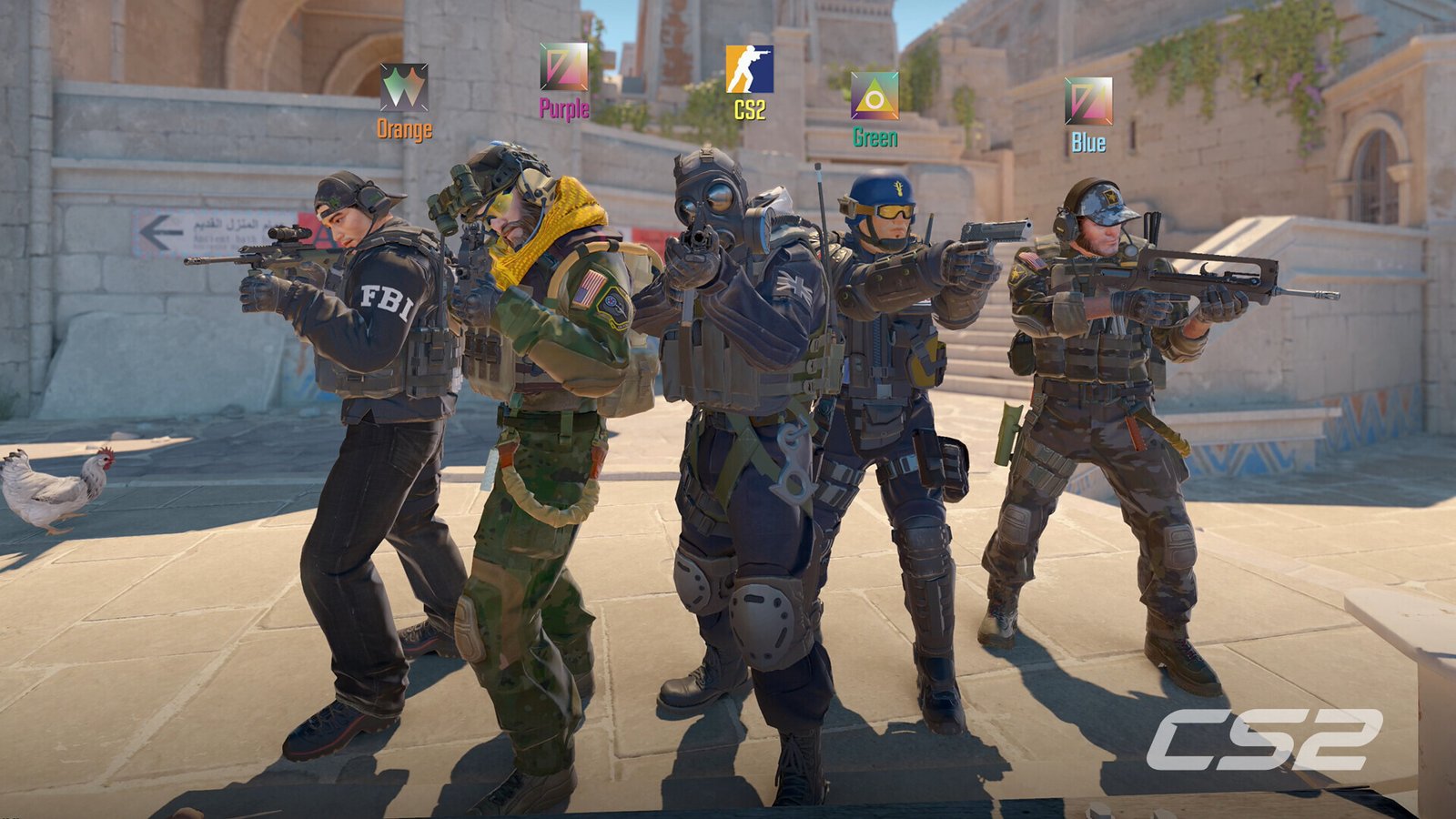 Counter-Strike 2 — Valve
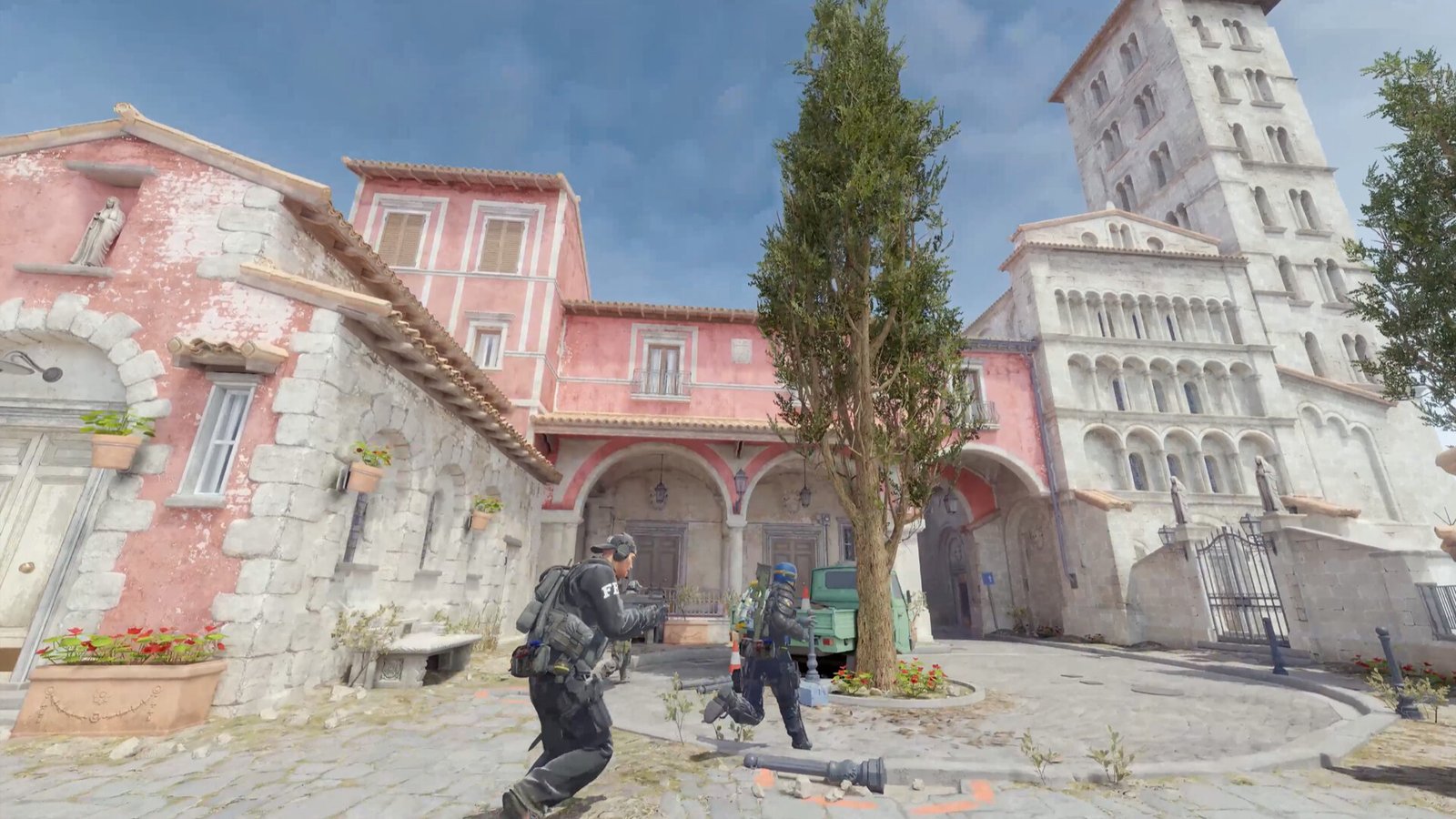 © Valve
 No products in the cart.