 Counter-Strike 2 — Valve
TOTOT.AE | VISUAL GUIDE FOR GAMERS
Best CS2 Settings for Max FPS and Low Input Lag
Every Advanced Video setting with visuals, what the pros actually use, and before-and-after test numbers.
In Counter-Strike 2 every frame and every millisecond counts in a duel. But there is a catch: lower isn’t always better, because settings like shadows can reveal where an enemy is. We went through the menu setting by setting, with what the pros use and real test numbers.
Can My PC Run CS2?
These are the official minimum requirements from the game’s Steam page:
Basic Video Settings
Open Settings → VIDEO → Video:
Advanced Video Settings (With Visuals)
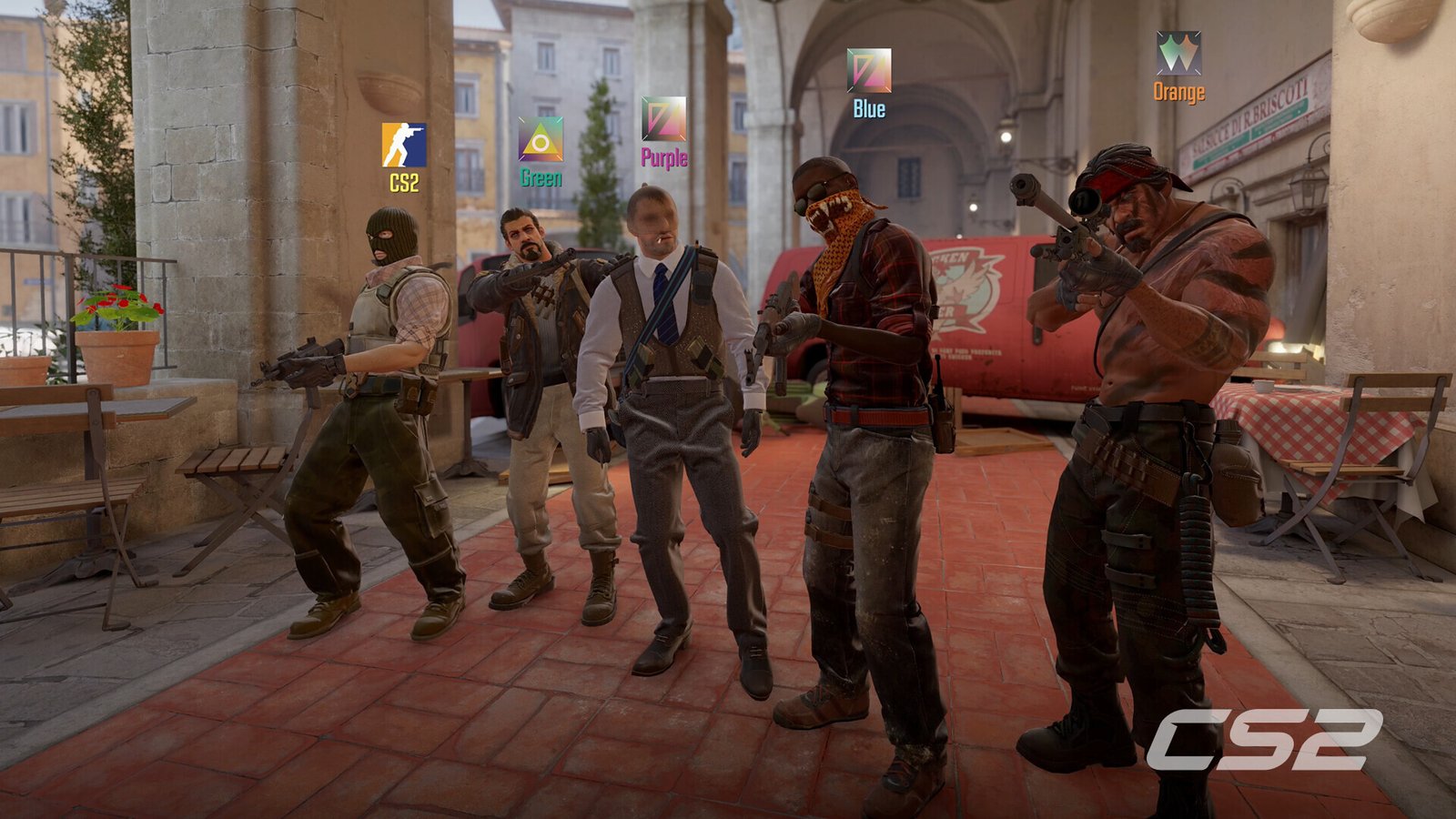
This is the menu that really matters. Green is what we recommend, and the bars show how much FPS a setting costs when set high:
 © Valve
Before and After in Numbers
What Do the Pros Use?
In Dust2.us’s survey of 40 professional players (including donk), these were the numbers:
Console Commands and FPS Counter
The old net_graph command was removed in CS2 and replaced by the Telemetry HUD. Turn it on in Settings → GAME → Telemetry → Show frame time and FPS = Always. These commands still work:
] cl_showfps 1
  # simple on-screen FPS counter
] fps_max 0
  # uncapped FPS (use with Reflex)
Launch Options: -fullscreen +cl_showfps 1
net_graph 1  →  Unknown command
Player Fixes for Stutter
Deleted the directx_installer folder, cleared the shader cache and verified game files; Deathmatch stutter went away, though FPS didn’t increase.
Stutter goneSource ↗Clearing shader cache and verifying files: one AMD player reported a big FPS gain, while another said it made things worse.
Results varySource ↗Had 200+ FPS but motion felt choppy; switching MSAA to 8x made the game feel very smooth for them.
Personal experienceSource ↗Found the game had reset itself to 60Hz after an update, which explained why it felt sluggish.
Check your HzSource ↗If the problem is your system rather than the game, see our Windows 11 FPS guide, and if you’re getting network lag, see our guide to fixing high ping.
Do It in One Click with Totot PC Care
Clean junk files, disable startup bloat, switch to the best power plan, and watch CPU/GPU temperatures in real time — all from one simple Windows tool.
Get Totot PC Care — 39 AED →✅ Your settings at a glance
- Fullscreen + max Hz
- Boost Player Contrast: Enabled
- VSync: Disabled
- Shadows: High
- Shader / Particle: Low
- Ambient Occlusion: Disabled
- FSR: Disabled
- Reflex: Enabled + Boost
- Telemetry FPS counter
- fps_max 0
Frequently Asked Questions
What are the best CS2 settings for FPS?
Set Shader Detail, Particle Detail and Model/Texture Detail to Low, disable Ambient Occlusion and VSync, and enable Reflex. In PC Optimized Settings’ test, going from Very High to Low raised FPS from 179 to 295.
Why do pros keep shadows on High?
Because an enemy’s shadow can show before they come around a corner, so shadows give you information, not just a nicer image.
Does net_graph work in CS2?
No, it was removed. Use the Telemetry HUD in Settings → GAME, or the cl_showfps 1 console command.
What are the minimum requirements for CS2?
According to the official Steam page: Windows 10, a CPU with 4 threads such as a Core i5 750, 8GB RAM, a 1GB DirectX 11 GPU, and 85GB of storage.
Do It in One Click with Totot PC Care
Clean junk files, disable startup bloat, switch to the best power plan, and watch CPU/GPU temperatures in real time — all from one simple Windows tool.
Get Totot PC Care — 39 AED →Gear up for your next match
Lightweight mice, mechanical keyboards and 240Hz monitors are available on totot.ae with interest-free installments.
Shop gaming gear →
 No products in the cart.