
Totot PC Care is a PC Cleaner and Optimizer for Windows 10 and Windows 11, built by Totot in the UAE. It clears temporary files, applies performance tweaks you can undo, manages startup apps and shows live CPU and GPU temperatures, all in one portable app with an Arabic and English interface. You pay once, download it the moment checkout finishes, and run it without installing anything.
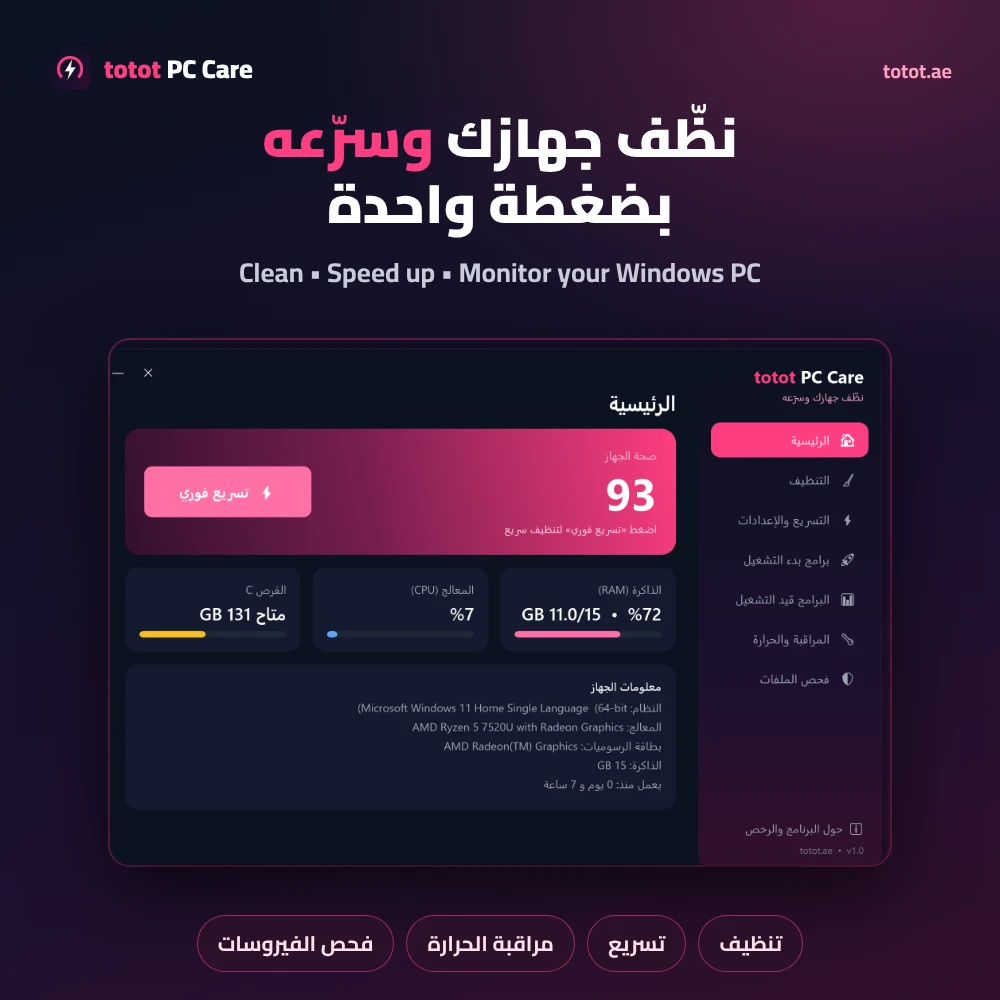
Table of Contents
- What the PC Cleaner and Optimizer does in one click
- Cleaning that leaves your files alone
- Performance tweaks you can undo
- Startup apps and running programs
- Live temperatures in the PC Cleaner and Optimizer
- On-screen counter over your games
- Windows debloat with one-click undo
- Game Boost, weekly clean and video enhancement
- Uninstall programs completely, leftovers included
- Screen colors and refresh rate overclock
- Instant replay of the last minutes on screen
- RGB lighting control for your PC parts
- Fan speed control and sensor names
- Starts with Windows, opens in one click
- Virus scan and large file finder
- Who This Is Not For
- Instant delivery after checkout
- Technical Specifications
- FAQ
What the PC Cleaner and Optimizer does in one click
The home screen gives your PC a health score and keeps RAM, CPU and drive C usage updating in front of you, next to a summary of your Windows version, processor, graphics, memory and uptime. Press Instant Boost and the PC Cleaner and Optimizer clears your user temp folder, the Windows temp folder, the Delivery Optimization cache and old error reports, then flushes the DNS cache, and tells you exactly how much space came back. When Windows has been running for more than three days without a restart, the home screen says so, because a restart is still the fastest free speed-up there is.
Cleaning that leaves your files alone
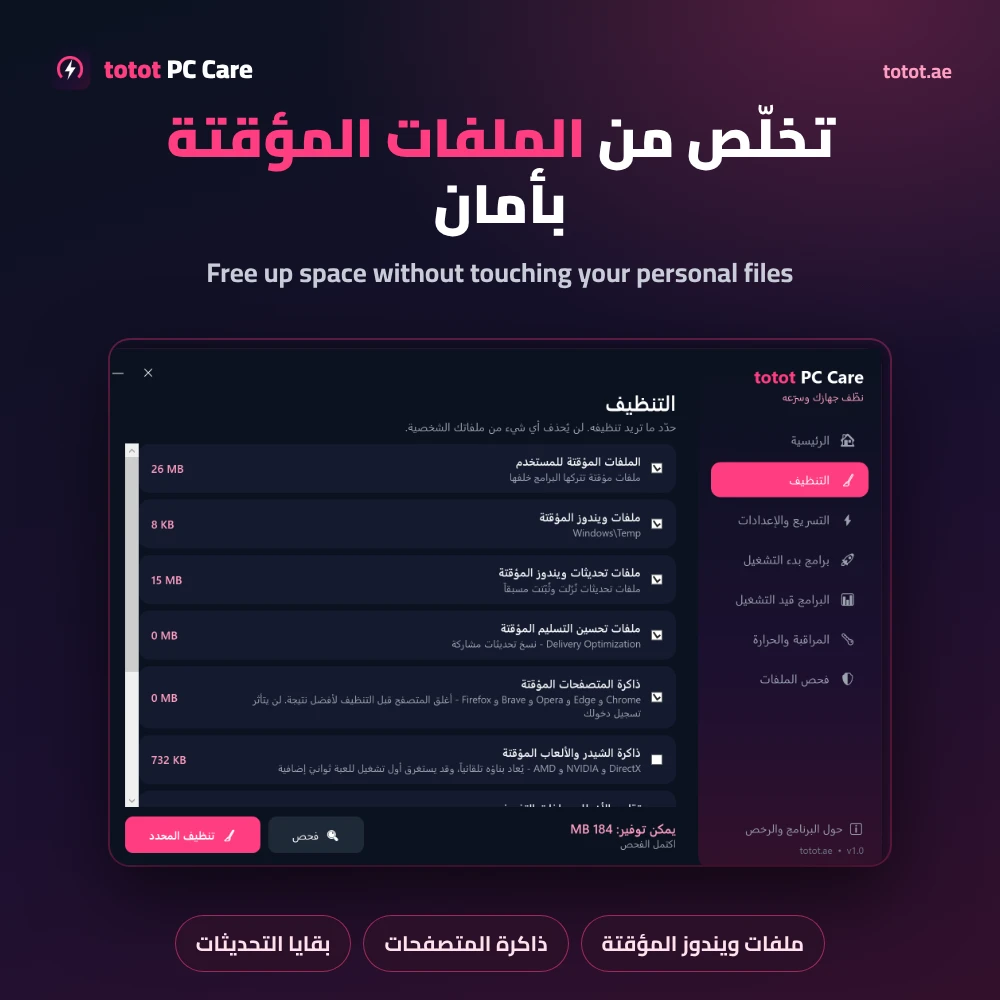
The Cleaning section of the PC Cleaner and Optimizer scans ten categories and shows the size of each one before anything is removed: user temporary files, Windows temporary files, the Windows Update download cache, Delivery Optimization files, browser caches for Chrome, Edge, Opera, Brave and Firefox, DirectX, NVIDIA and AMD shader caches, error reports and crash dumps, the thumbnail cache, old Windows log files and the Recycle Bin. You tick what goes. The shader cache, thumbnails and Recycle Bin start unticked, since emptying them has side effects you may not want.
Your Documents, Desktop, Pictures and Downloads folders are not part of any category the PC Cleaner and Optimizer touches. Browser cleaning touches cache folders only, so your sign-ins and saved passwords stay where they are. Files that Windows is using at that moment are skipped rather than forced.
Performance tweaks you can undo
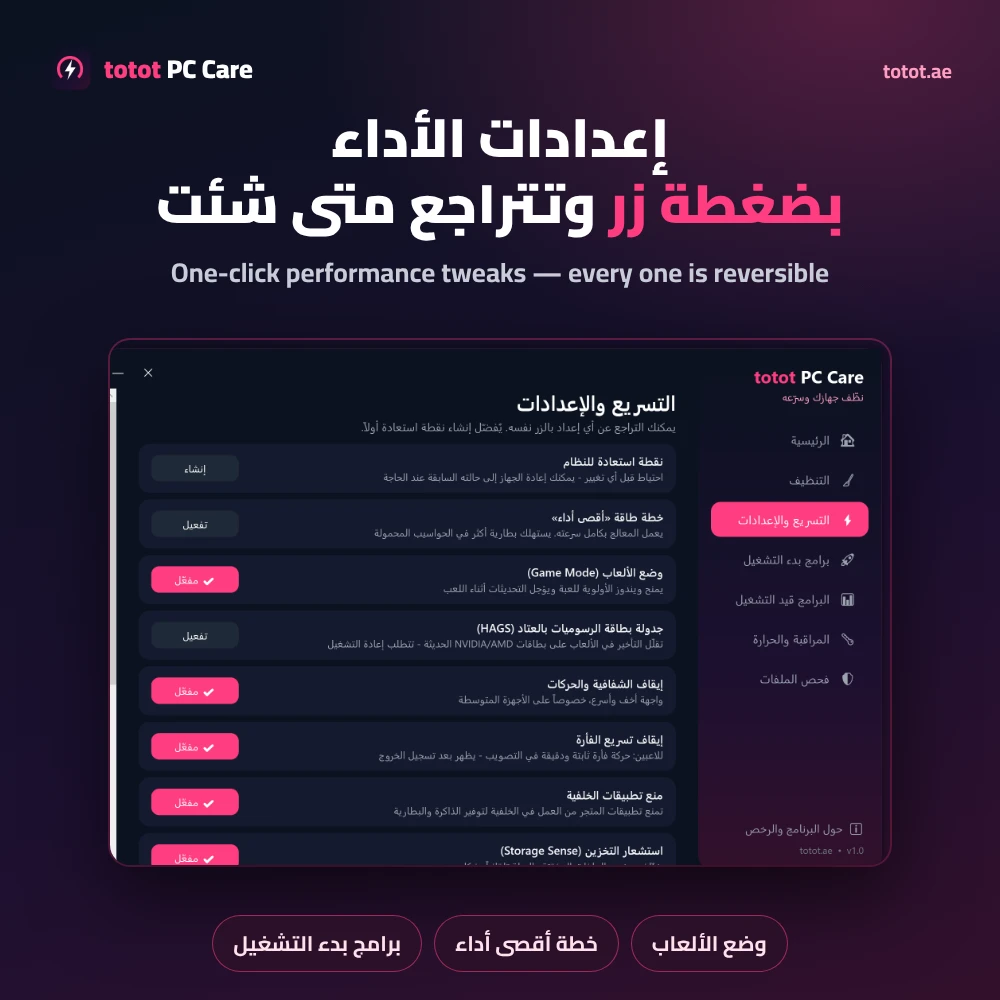
Every tweak in the PC Cleaner and Optimizer shows its current state, and the same button switches it back. The list covers the Ultimate Performance power plan, Windows Game Mode, hardware-accelerated GPU scheduling (HAGS), turning off transparency and window animations, turning off mouse acceleration for steadier aim, blocking Microsoft Store apps from running in the background, and Storage Sense. The first button on the page creates a Windows restore point, so you have a way back before you change anything.
Below the tweaks sit four maintenance tools that use Windows’ own utilities: a DNS cache flush, drive optimisation (TRIM on SSDs, defragmentation on hard drives), a DISM plus SFC system file repair, and a cleanup of leftover Windows Update components. These are settings Windows already has; Totot PC Care puts them on one page with plain explanations. They make a slow PC feel lighter, but they will not turn an entry-level laptop into a gaming machine.
Startup apps and running programs
The startup manager in this PC Cleaner and Optimizer lists every program that launches with Windows, from the registry Run entries for your account and for all users and from the Startup folders, and turns each one on or off with one click. It uses the same switch as Task Manager, so the change shows after your next restart and can be reversed at any time. The running programs page shows the 15 apps using the most memory, grouped with their process count, with an End button for anything you do not need right now. Core Windows processes are kept off this list.
Live temperatures in the PC Cleaner and Optimizer
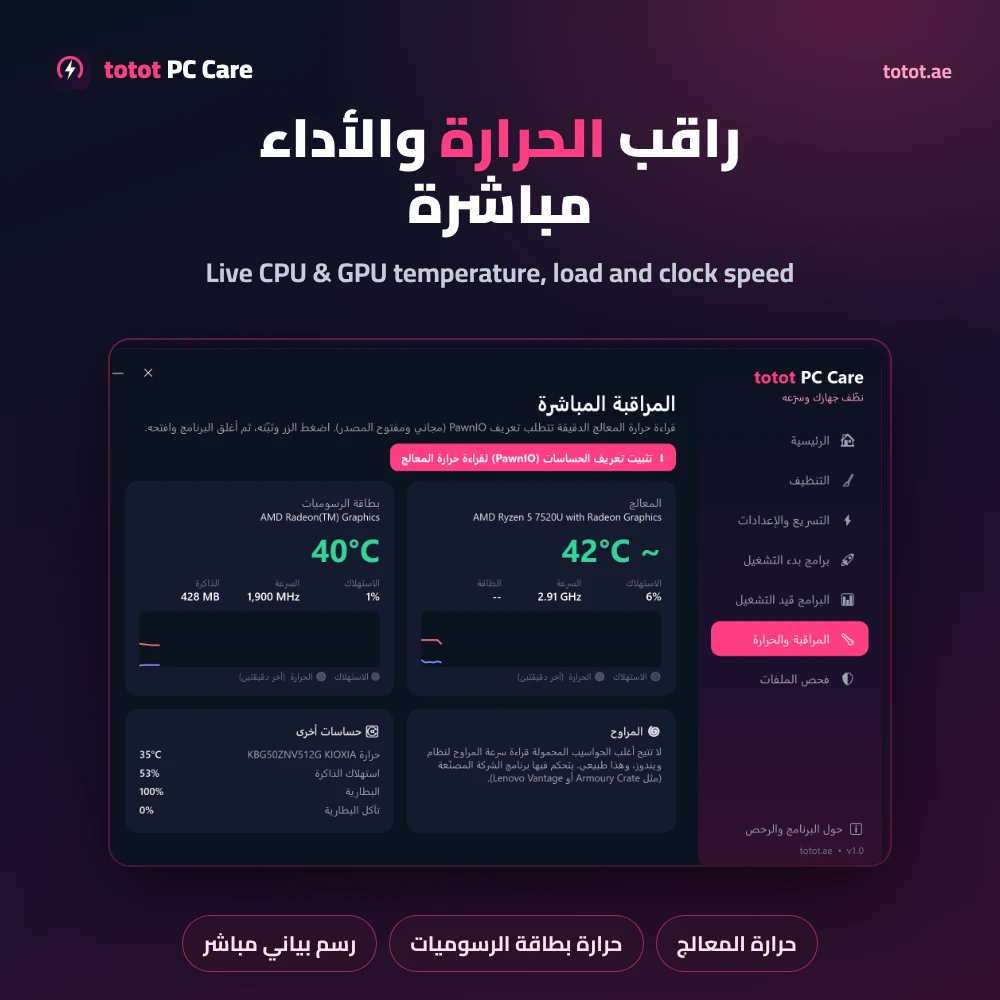
The monitoring page refreshes every two seconds. For the processor it shows temperature, load, real clock speed and package power; for the graphics card it shows temperature, load, clock and memory in use, each with a two-minute graph. It also lists fan speeds where your motherboard reports them, SSD temperature, and battery charge and wear. Sensor readings come from the open-source LibreHardwareMonitor library.
Some processors, including many AMD Ryzen laptops, need the free PawnIO driver before Windows allows an exact CPU temperature reading. A button inside the app downloads its official installer. Until it is installed, the app shows an approximate reading from Windows’ thermal zone, marked with a ~ sign. Most laptops do not expose fan speed to Windows at all; that is controlled by the maker’s own software.
On-screen counter over your games
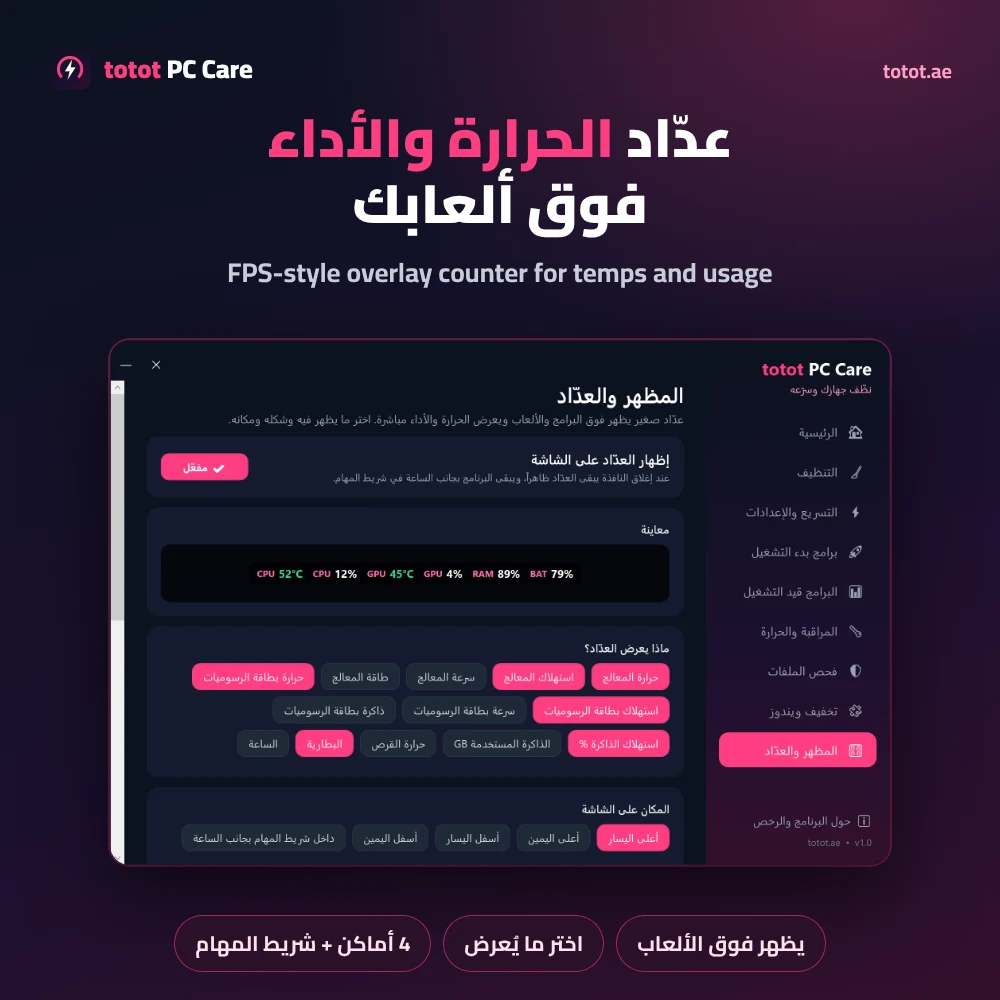
The Appearance and Counter page turns on a small counter with a live frame rate (FPS) reading that stays on top of your apps and full-screen games in borderless mode. You choose what it shows: CPU temperature, CPU load, CPU clock and power, GPU temperature, GPU load, clock and memory, RAM percentage or used GB, drive temperature, frame rate (FPS), battery with a charging mark, and the clock. Put it in any of the four screen corners or next to the clock on the taskbar. Clicks pass straight through it, so it never gets in the way of your mouse. When you close the main window, the counter keeps running and the PC Cleaner and Optimizer waits in the system tray.
Windows debloat with one-click undo
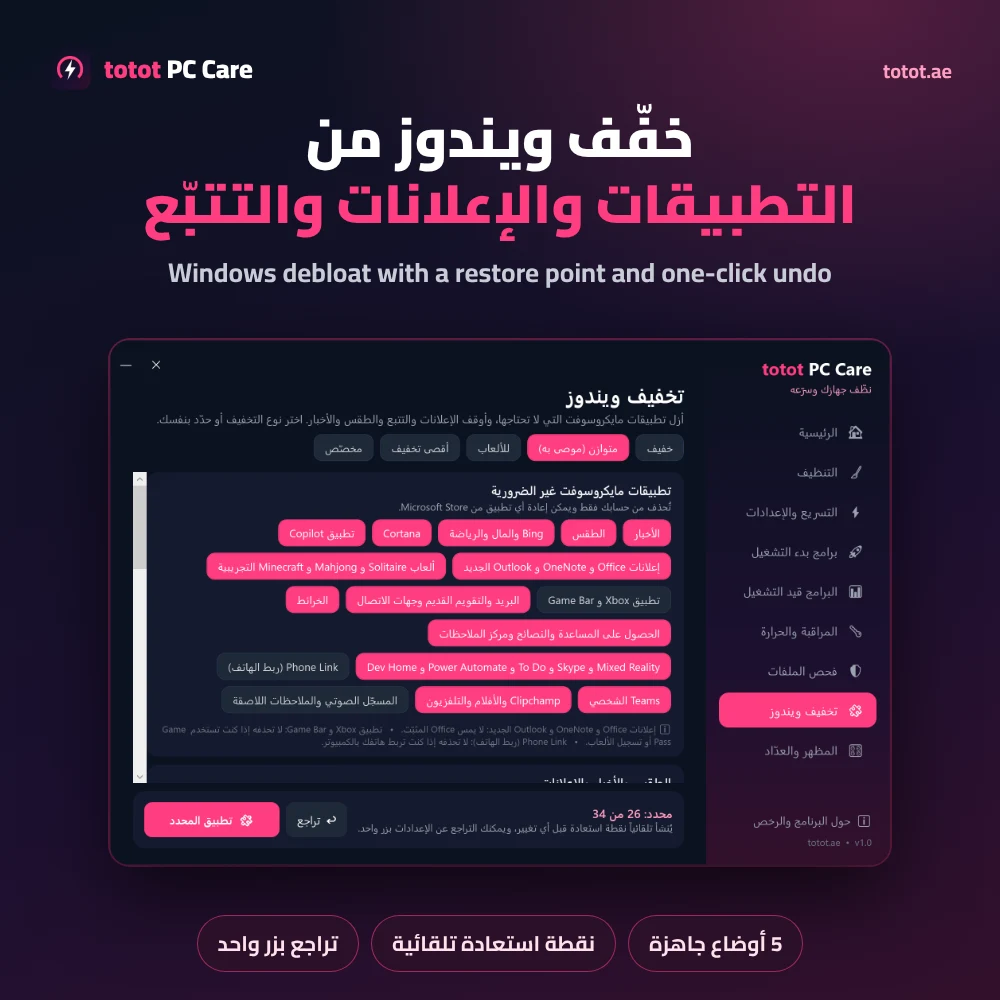
The Windows debloat page removes Microsoft apps most people never open, such as News, Weather, Bing, Copilot, Office ads, Solitaire and Clipchamp, and switches off advertising IDs, telemetry, tips, web results in the Start menu and the Widgets board. Pick one of five profiles, Light, Balanced, Gaming, Maximum or Custom, or tick each item yourself. Before any change the PC Cleaner and Optimizer creates a restore point and saves a backup of every setting it touches, so the Undo button puts things back. Removed apps can also be reinstalled from the Microsoft Store at any time.
Game Boost, weekly clean and video enhancement
Version 1.1 of the PC Cleaner and Optimizer adds three tools. Game Boost on the home screen switches to full CPU performance, turns on Windows Game Mode and, after asking you, closes background apps such as OneDrive, Teams, Skype and Phone Link. Press it again when you finish playing and the power plan you had before comes back. Weekly auto clean creates a Windows scheduled task that removes temporary files older than one day once a week and shows a small notification with the space it freed.
The Video enhance page detects your graphics card and opens the right setting: RTX Video Super Resolution on NVIDIA GeForce RTX cards, Video Upscale in AMD Software on Radeon RX 7000 and newer, and the Windows option that processes video automatically on other PCs. The upscaling itself runs on the graphics card, so a 720p stream looks sharper without loading your CPU. The app also shows a notice on the home screen when a newer version is ready to download from My Account.
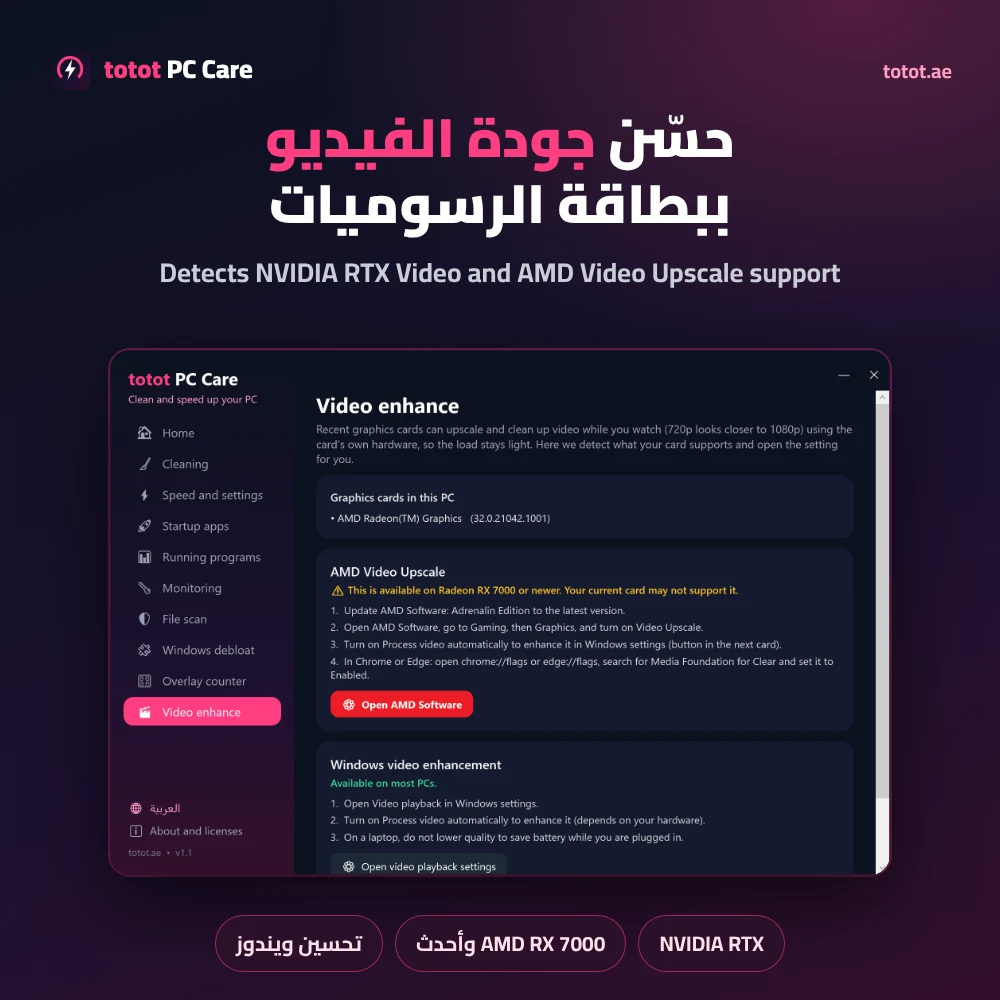
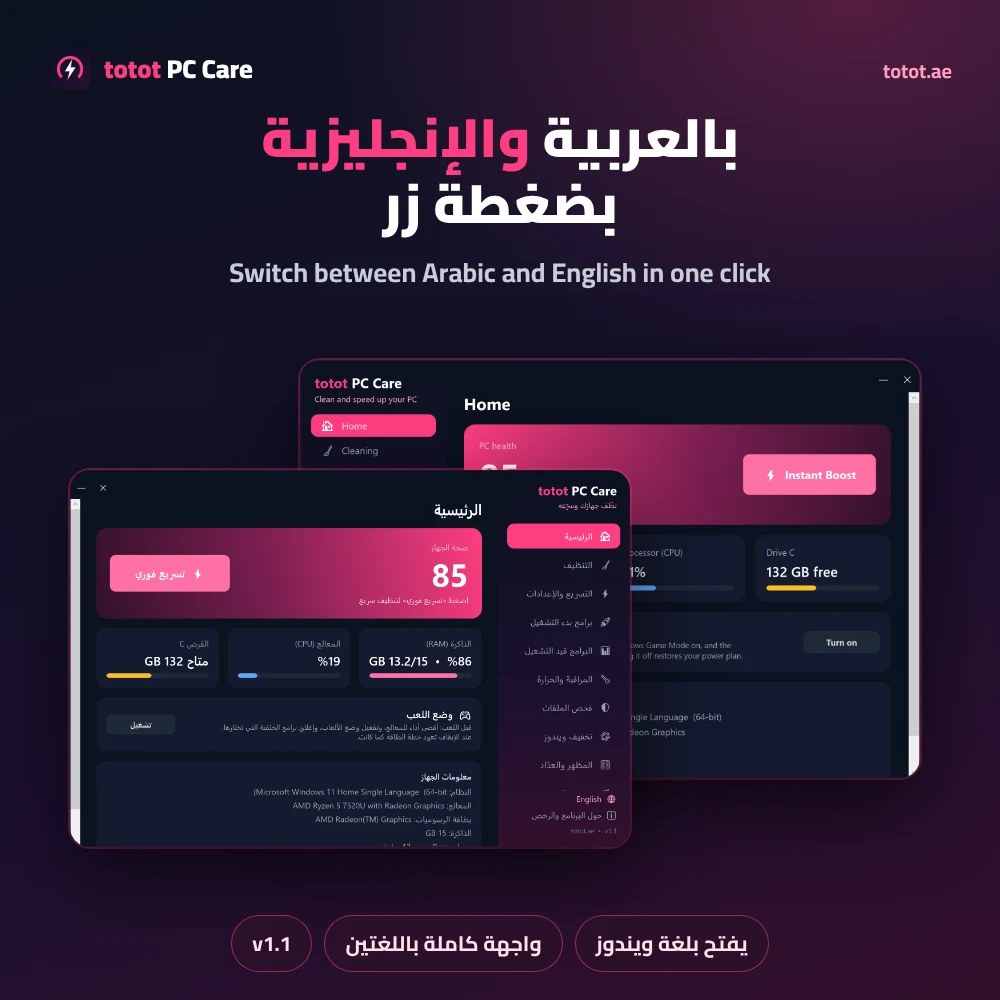
The whole interface is available in Arabic and English. The app opens in your Windows language, and the globe button at the bottom of the sidebar switches language in one click.
Uninstall programs completely, leftovers included
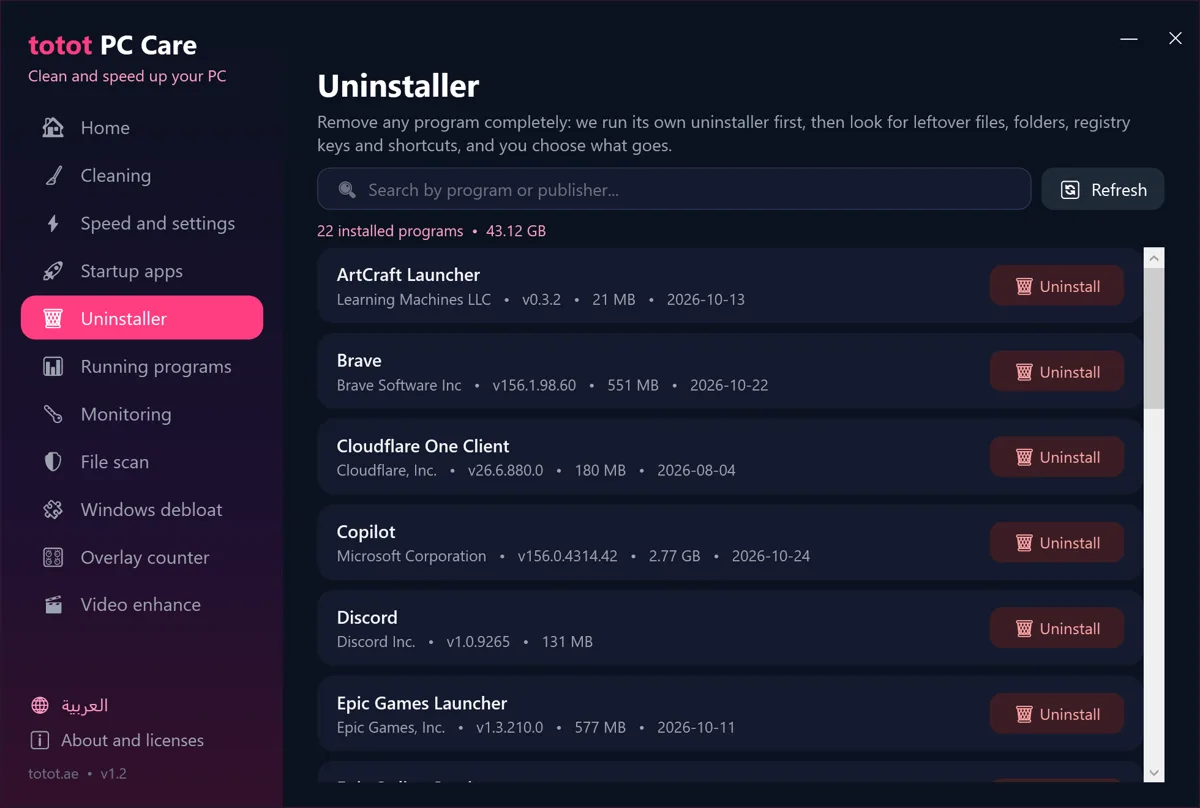
The Uninstall Programs page lists every installed program with its publisher, version, size and install date, and a search box finds any program by name or company. Press Remove and the PC Cleaner and Optimizer runs the program’s own uninstaller first, then searches for what it usually leaves behind: leftover folders, registry keys and scheduled tasks. You see the list of leftovers and choose what to delete. Leftover files go to the Recycle Bin and registry keys are backed up before removal, so nothing is lost by mistake. Windows debloat also removes the desktop version of the Copilot app, not only the Store version.
Screen colors and refresh rate overclock
The Screen Colors page reads your display and suggests a setting for it: more saturation for washed-out laptop panels, a lighter touch for standard screens, and no boost for wide-gamut displays. You can also pick a preset (Vivid, Gaming, Movies, Eye comfort, Night reading) or adjust saturation, brightness, contrast, gamma and color temperature by hand, then go back to the original colors with one click.
The same page can raise the refresh rate a little above the original, for example from 60 to 75 Hz on many screens, for smoother motion in games. Each new rate is tried first without being saved: if you do not confirm the picture within 15 seconds, the original rate comes back on its own, and the original rate stays the default after every restart.
Instant replay of the last minutes on screen
Totot PC Care keeps recording the last minutes of your screen in the background on the graphics card itself, the way ShadowPlay does. When something worth keeping happens, one shortcut saves an MP4 of the last 1, 2, 3, 5 or 10 minutes. You choose the resolution (native, 1440, 1080 or 720), the frame rate, the quality (Low, Medium, High, Very high, or your own bitrate as in OBS), PC sound, the microphone you want with a Hear myself live button that plays your voice back in real time with a level wave, a slider to raise or lower the microphone, and a noise reduction slider you hear at once and that applies to recordings, and which screen to record if you have more than one.
Pick H.264, which plays everywhere, or H.265, which gives a file about 40% smaller at the same sharpness, and the app shows the expected size per minute before you start. The default save shortcut is Alt + F10, and you can change it to any key or key combination, or to one of the mouse side buttons, choose the folder clips are saved in, and click the notification after saving to open the clip’s location. An Instant replay indicator in the on-screen counter shows that it is running, and any change to the settings applies right away without stopping the recording. Encoding runs on the graphics card (NVIDIA, AMD or Intel), so CPU load stays low, and recording at the screen’s native resolution is the lightest option. On first use the app downloads the FFmpeg recording tool once, about 39 MB.
RGB lighting control for your PC parts
The Lighting page finds the RGB parts in your PC by itself, such as RAM, motherboard, graphics card and many supported keyboards and mice, and lists them in one place without you typing any part names. Pick a color and apply it to every part or only the ones you tick, with Static, Rainbow, Breathing and Off effects. The search includes the motherboard’s ARGB headers, where AIO coolers and case fans are plugged in. The app remembers the parts and the color you chose and applies them again every time it runs.
The RGB feature is built on the open-source OpenRGB project, which the app downloads on first use. Parts wired to the case lighting button or to their own controller cannot be reached by any app; plugging their lighting cable into an ARGB header on the motherboard fixes that.
Fan speed control and sensor names
On the Monitoring page the app lists every fan your motherboard or graphics card lets software control. Set a fixed speed (30%, 50%, 75% or 100%) or leave it on Auto so it follows temperature, and the Where is it? button runs a fan at full speed for 6 seconds so you can find it in the case. To protect your PC, every fan goes back to Auto if the CPU passes 90 degrees or the graphics card passes 85 degrees, when Game Boost is turned on, and when you close the app. Click any fan or sensor name to give it a name you recognize, such as Front case fan.
Starts with Windows, opens in one click
On first run the app puts a shortcut on the desktop and in the Start menu, and a button recreates it any time. From the Startup Apps page you can have it start with Windows without the permission prompt: it waits next to the clock and brings back your screen colors, lighting, counter and instant replay as you left them, and one click on its icon opens it. Screen colors you set once are saved and applied automatically every time. New versions reach buyers for free in My Account on the same download link, and the app shows a notice when a newer version is ready.
Virus scan and large file finder
File Scan in the PC Cleaner and Optimizer runs the Microsoft Defender engine that is already part of Windows. Choose a quick scan, a full scan or a single folder; the app updates virus definitions first, then lists any threats found and shows whether real-time protection is on. If another antivirus is your main protection, Defender runs in passive mode and the scan may not start. The large file finder lists the 50 biggest files over 100 MB on drive C, in your user folder or in a folder you pick, with a button to open each file’s location and a Delete button that moves it to the Recycle Bin.
Who This Is Not For
- Video upscaling needs a supported graphics card: NVIDIA GeForce RTX, or AMD Radeon RX 7000 or newer.
- It runs on Windows only. There is no version for macOS, Linux or Android.
- It needs administrator rights, so it will not run on a locked work or school PC.
- It is not code-signed yet. The first time you open it, Windows may show “Windows protected your PC”; choose More info, then Run anyway.
- It is not an antivirus. Virus scanning uses Microsoft Defender, which is already on your PC.
- Fan speeds are unavailable on most laptops, and some CPUs need the free PawnIO driver for an exact temperature.
- Fan and lighting control depend on support from your motherboard and parts; not every PC allows it.
- Instant replay and lighting need an internet connection on first use to download their tools.
- Windows 10 versions older than 1809 are not supported, because the app needs .NET Framework 4.7.2.
Instant delivery after checkout
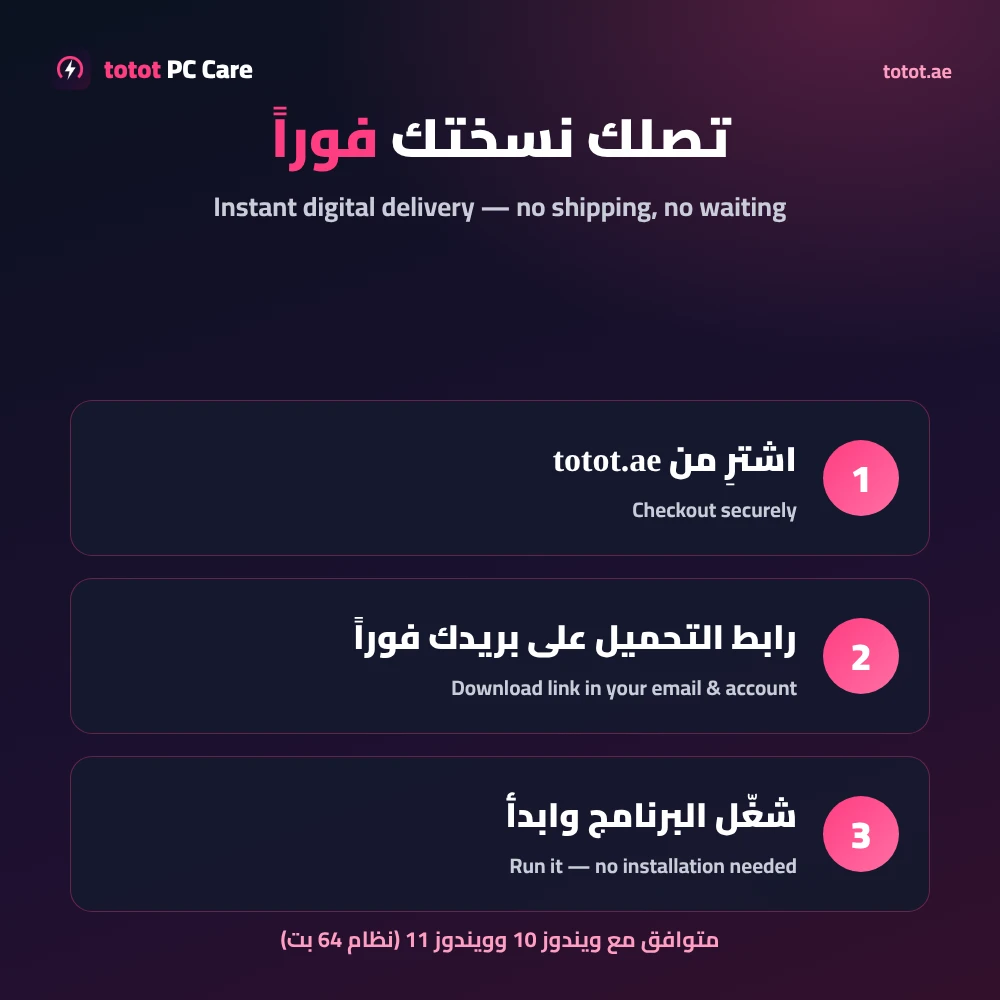
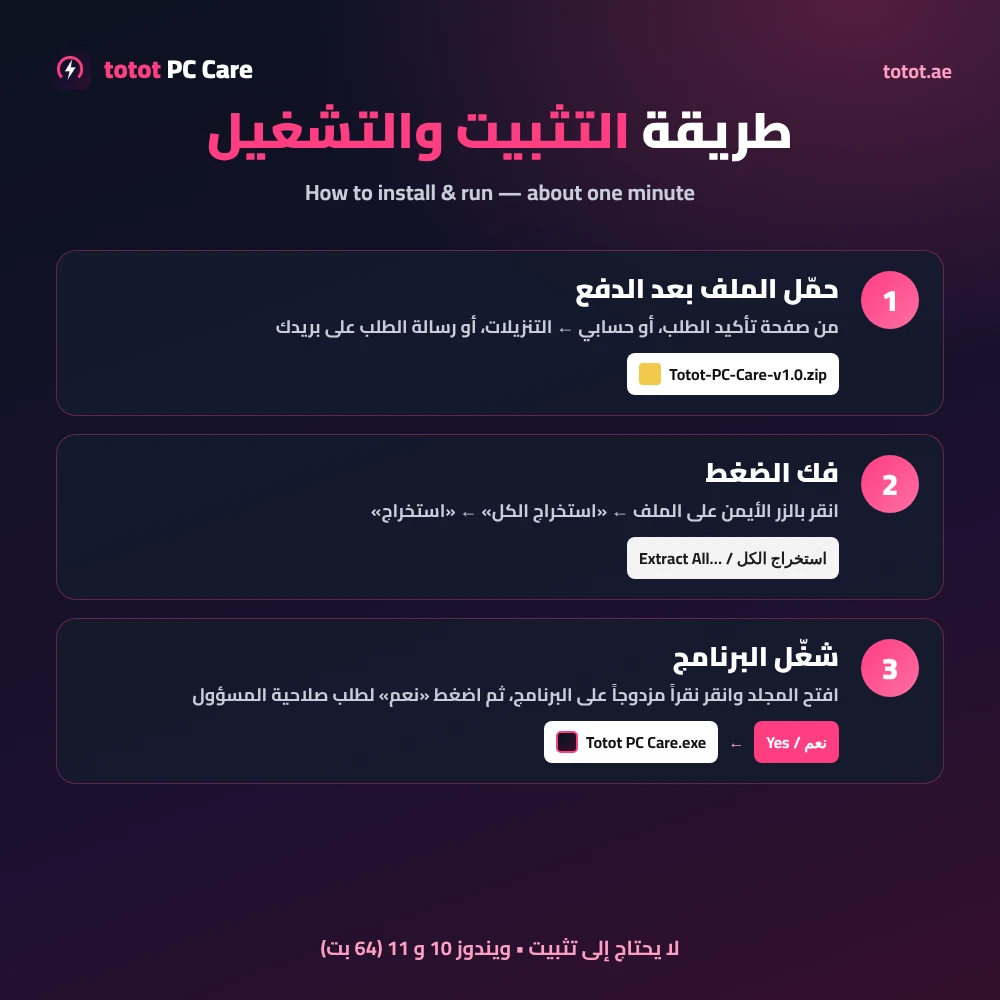
This is a digital product, so nothing ships. As soon as payment goes through, the download link appears on the order confirmation page, in My Account under Downloads, and in your order email. The PC Cleaner and Optimizer ZIP file is about 2.4 MB and holds Totot PC Care.exe plus a read-me in Arabic and English. Extract it, double-click the program and approve the administrator prompt. There is no installer. If Totot PC Care does not run on a PC that meets the requirements, contact us within 14 days under our return and refund policy. Support is at support@totot.ae.
How to install the PC Cleaner and Optimizer
Download the ZIP, right-click it and choose Extract All, then double-click Totot PC Care.exe inside the folder and choose Yes on the administrator prompt.
If Windows shows a message
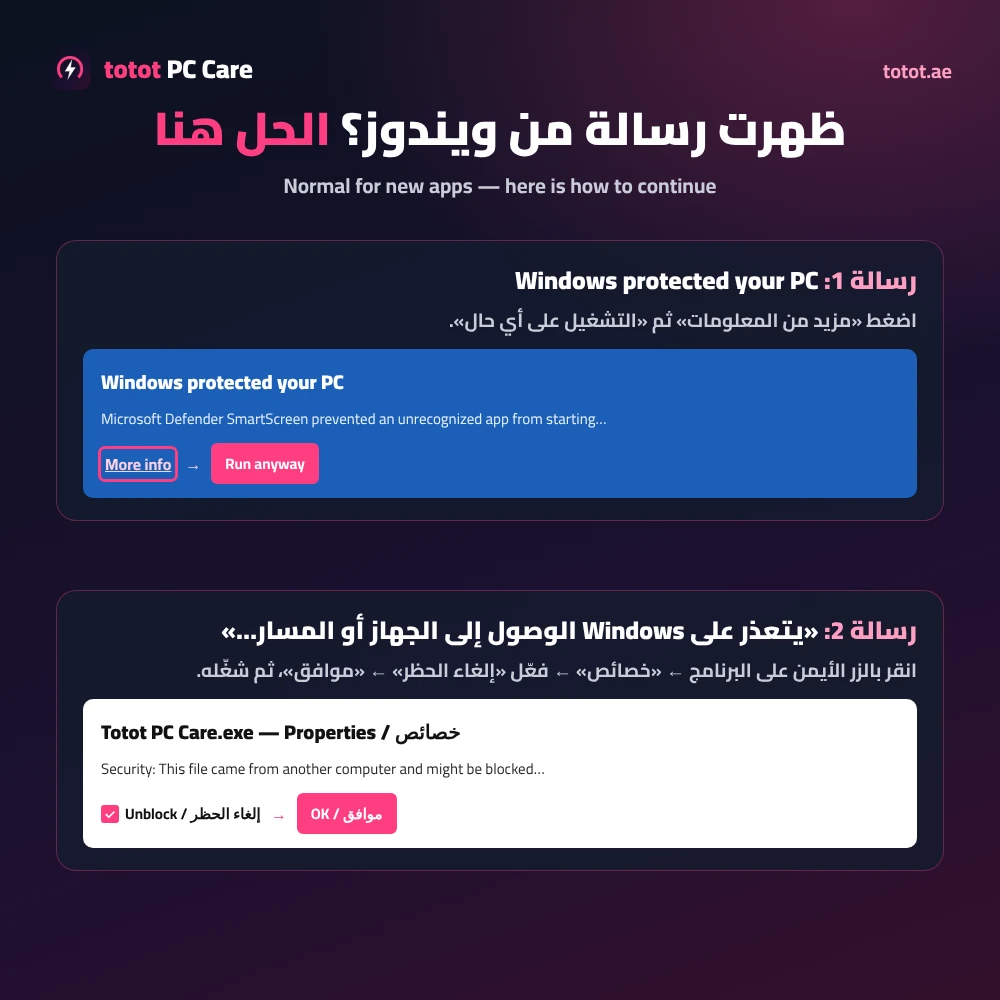
If you see “Windows protected your PC”, choose More info, then Run anyway. If you see “Windows cannot access the specified device, path, or file”, right-click Totot PC Care.exe, open Properties, tick Unblock, press OK and run it again. Both messages come from Windows checks on new apps downloaded from the internet that are not code-signed yet.
Technical Specifications
- Product: Totot PC Care v3.9
- Type: PC Cleaner and Optimizer, digital download, portable app with no installation
- Operating system: Windows 10 (version 1809 or newer) and Windows 11, 64-bit
- Requirements: administrator rights and .NET Framework 4.7.2 or newer, built into supported Windows versions
- Interface language: Arabic and English
- Download size: about 2.4 MB (ZIP)
- Sections: Home, Cleaning, Speed and Settings, Startup Apps, Running Programs, Monitoring, File Scan, Windows Debloat, Appearance and Counter, Video Enhance, Uninstall Programs, Screen Colors, Lighting, Instant Replay
- Sensor engine: LibreHardwareMonitor (Mozilla Public License 2.0), optional PawnIO driver
- Downloaded when needed: FFmpeg for instant replay (GPL license) and OpenRGB for lighting (GPL-2.0)
- Virus scanning: Microsoft Defender, built into Windows
- Delivery: download link immediately after payment
- Support: support@totot.ae
FAQ
Does the PC Cleaner and Optimizer delete my personal files?
No. It only cleans temporary and cache folders. Large files you choose to remove go to the Recycle Bin, not straight to deletion.
Do I need to install the PC Cleaner and Optimizer?
No. Extract the ZIP and double-click Totot PC Care.exe. It runs without an installer.
Will Windows show a warning the first time?
Yes, it can. Because the app is not code-signed yet, SmartScreen may show “Windows protected your PC”; choose More info, then Run anyway. If Windows says it cannot access the file, open Properties, tick Unblock and press OK.
Does it work on Windows 7 or Windows 8?
No. It supports Windows 10 version 1809 or newer and Windows 11, 64-bit.
Can I undo the PC Cleaner and Optimizer speed tweaks?
Yes. Every tweak uses the same button to switch back, and you can create a Windows restore point from the same page before changing anything.
Do I need an extra driver to see my CPU temperature?
Yes, on some processors, including many AMD Ryzen laptops. The free PawnIO driver is needed, and the app has a button that downloads its official installer.
Is the interface available in English?
Yes. Since version 1.1 the app opens in your Windows language and switches between Arabic and English with one button.
Can I download it again later?
Yes. The link stays in My Account under Downloads, so you can download it again whenever you need.
Does instant replay slow down games?
Usually only a little, because encoding runs on the graphics card, not the CPU. Recording at the screen’s native resolution is lighter than lowering it, and you can turn it off any time.
Do I get new versions for free?
Yes. Every new version reaches your account on the same download link, and the app shows a notice when one is ready.
Does the PC Cleaner and Optimizer replace my antivirus?
No. Its virus scan uses Microsoft Defender, the protection that already comes with Windows.


 No products in the cart.

Reviews
There are no reviews yet