Game Graphics Settings Explained (Visual Guide): What Each Setting Does to Your FPS (2026)

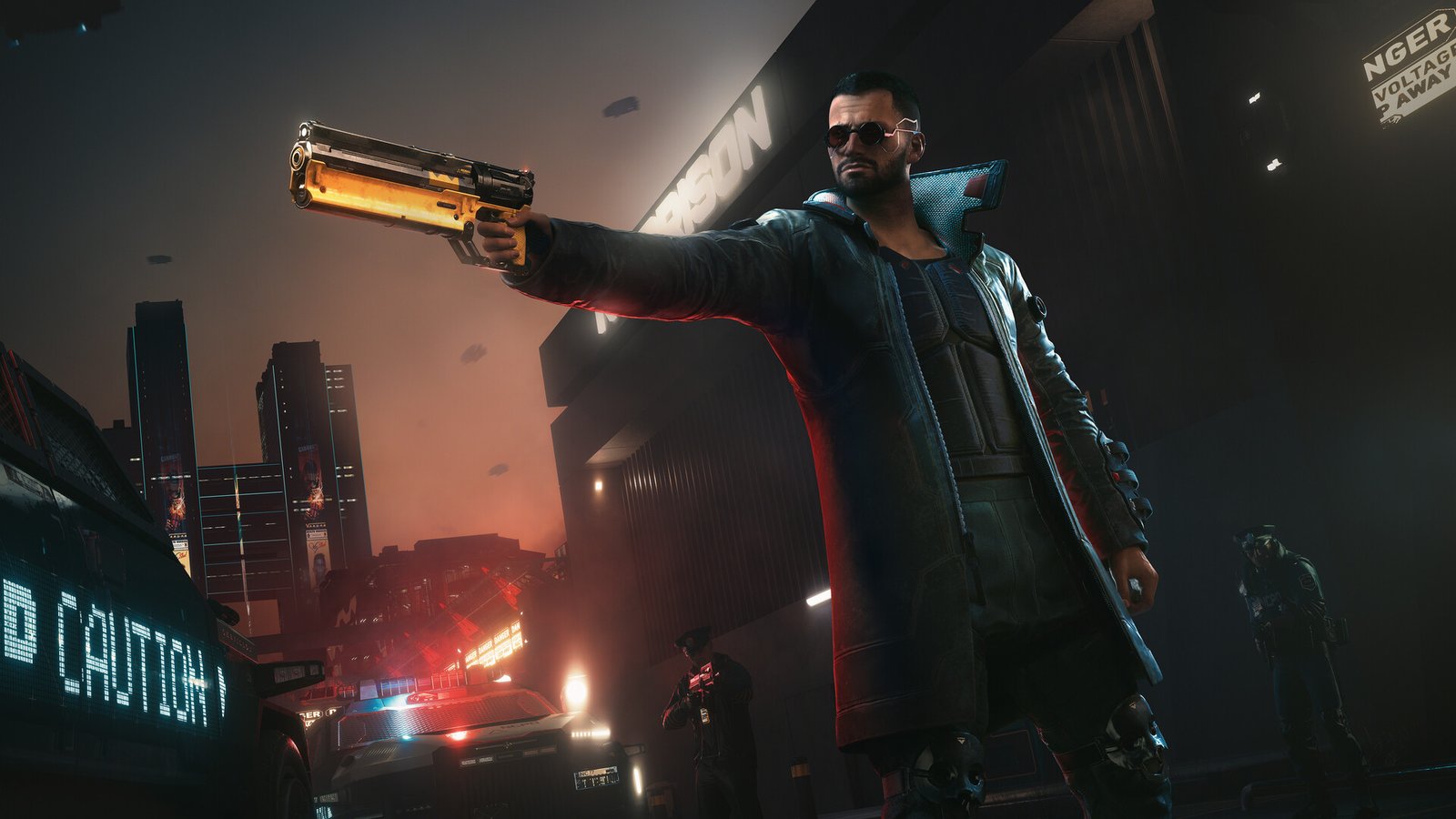
Cyberpunk 2077 night city
Game Graphics Settings Explained: What Each One Does to Your FPSCyberpunk 2077 — CD PROJEKT RED

TOTOT.AE | VISUAL GUIDE FOR GAMERS

Game Graphics Settings Explained: What Each One Does to Your FPS

How much FPS each setting really costs, with test numbers, what to lower first, and what to keep high for free.

🎮 Works for any game📊 Real test numbers📷 Visual walkthrough

Most players pick a preset like High or Low and move on, but that either wastes a lot of FPS or throws away quality for nothing. Graphics settings are not equal: some cut performance in half for a barely visible difference, while others make the image much better and cost almost nothing. This guide explains each one with visuals and numbers from real tests.

40 → 64 FPSFrom turning on DLSS Quality in Cyberpunk 2077 with ray tracing — LaptopMedia
½The performance ray tracing Ultra can cost without DLSS — Tom’s Hardware
10–15%Gain from setting volumetric fog to Low — Tom’s Hardware
~0%What 16x Anisotropic Filtering costs, roughly

DLSS, FSR and XeSS: The Biggest FPS Lever

These technologies render the game at a lower resolution and then upscale it to your screen with AI, so you get much higher FPS with an image close to native. Here is the difference in numbers:

🧪 Real testCyberpunk 2077 at 1080p with Ray Tracing Ultra — RTX 3070 laptop
DLSS off (native)
40 FPS
DLSS Quality
64 FPS
DLSS Balanced
71 FPS
DLSS Performance
76 FPS
+60% FPS from Quality mode alone
Source: LaptopMedia — RTX 3070 Laptop (130W). They recommend Quality or Balanced at 1080p because Performance looks noticeably softer.
🟩DLSSNVIDIA RTX cards only, usually the best image quality. Official NVIDIA page
🟥FSRFrom AMD, works on most graphics cards, including older ones.
🟦XeSSFrom Intel, also works across different GPUs.
DisplayGraphicsUpscaling
ModeWhen to use it
QualityStart here
BalancedBest for most people
PerformanceWeak PCs or 4K
Ultra PerformanceLast resort
Frame GenerationStory games
Frame Generation doubles the frames you see but adds a little latency, so it is not recommended for competitive games. It works best when your base FPS is above about 50.
📷 Illustration of DLSS / FSR modes — green is what we recommend

Heavy Settings: Lower These First

These eat the most performance, and the visual difference is usually small during fast gameplay:

DisplayGraphicsRay Tracing
SettingValueFPS cost
Ray TracingOff
Shadow QualityMedium
Volumetric Fog / CloudsLow
Screen Space ReflectionsMedium
Ambient OcclusionSSAO / Low
Global IlluminationMedium
Crowd DensityMedium
🔴 Heavy FPS cost   🟡 Medium   🟢 Light — Crowd Density depends more on your CPU than your GPU.
📷 Illustration of the heavy settings and the value we recommend
🧪 Real testHow much you gain by lowering each setting (Cyberpunk 2077)
Screen Space Reflections → Medium or Off
+10–15%
Volumetric Fog → Low
+10–15%
All shadow settings together
+10–15%
Crowd Density → Low
~+10%
Cinematic effects and detail → Min
~+10%
Source: Tom’s Hardware — Cyberpunk 2077 settings analysis. Approximate figures that vary by GPU and CPU.

Ray Tracing: The Heaviest Setting of All

It delivers very realistic lighting and reflections, but the cost is high. Tom’s Hardware found RT Ultra without DLSS cuts performance in half or a bit more:
🧪 Real testRTX 3080 at 1440p — Cyberpunk 2077
Ray tracing off
100+ FPS
Ray tracing on (with DLSS)
~70 FPS
Turn it off on mid-range cards or when you want high FPS
Source: Tom’s Hardware — approximate figures from the article; the game has been updated many times since.
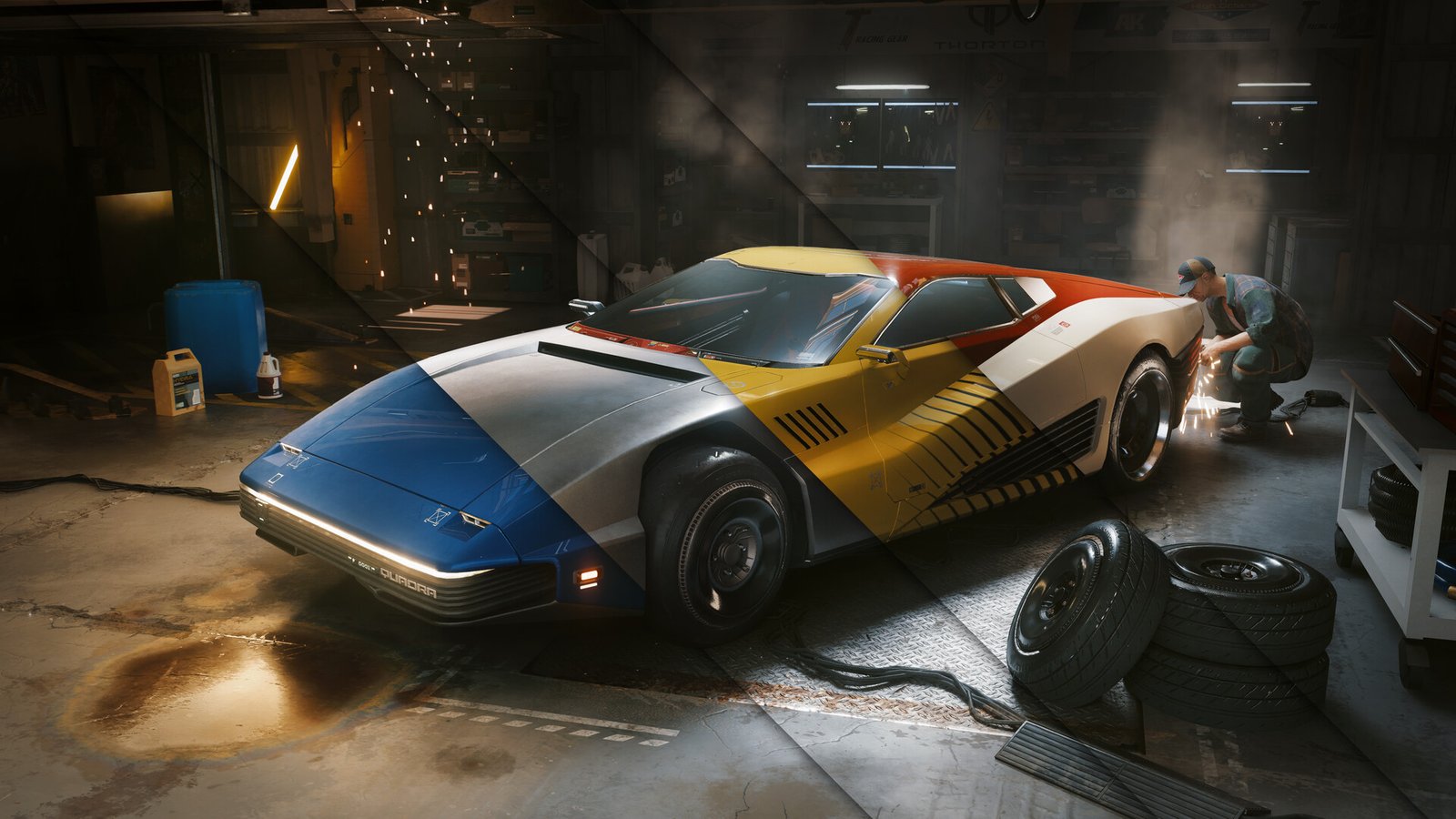
Cyberpunk 2077 screenshot with lighting and reflections© CD PROJEKT RED
📷 Cyberpunk 2077: the lighting and reflections on the car and floor are exactly what ray tracing improves, and also what costs the most performance.
RedditPlayer test on Reddit

A player dropped Warzone shadows from High to Low and gained about 18 FPS instantly.

+18 FPSSource ↗
TESTTip from Tom’s Hardware testing

The gap between Ultra and Medium reached about 35% FPS on slower GPUs at 1080p, so Medium costs you very little visually.

Medium = great dealSource ↗

Light Settings: Keep These High

These make the game look much better and cost very little, so there is no reason to lower them:

🧱Texture QualityDepends on graphics memory (VRAM), not GPU power. With 8GB or more, keep it High.
🔍Anisotropic FilteringAlmost free and keeps distant ground sharp. Set it to 16x.
👁Field of ViewHigher shows more of the scene, with a small FPS impact in most games.
❌ MythDropping textures to Low raises FPS a lot.
✅ RealityUsually not. It only matters when VRAM is full, and the sign is sudden stutter, not constantly low FPS.
❌ MythThe Low preset is the fastest fix.
✅ RealityDLSS/FSR plus lower shadows and RT gives you FPS close to Low with a much nicer image.

Clarity and Latency

These settings cost little FPS, but they affect how sharp the image looks and how responsive your mouse feels:

DisplayGraphicsAdvanced
SettingValueFPS cost
Motion BlurOff
Depth of FieldOff
Film GrainOff
Chromatic AberrationOff
V-SyncOff
Frame Rate Limit141 (144Hz screen)
NVIDIA Reflex / AMD Anti-LagOn
If your monitor supports G-Sync or FreeSync: turn V-Sync off in-game and cap FPS about 3 below your refresh rate.
📷 Illustration of the recommended clarity and latency settings
🎬 VIDEOEvery graphics setting shown before and after in 16 minutes (Explainer Chris)

Best Settings by Hardware Tier

🟢Entry-level PCe.g. GTX 1650 or integrated graphics: FSR Performance, Low shadows, no RT.
🟡Mid-range PCe.g. RTX 4060 / 5060: DLSS Balanced, Medium shadows, High textures.
🔴High-end PCe.g. RTX 4070 and up: DLSS Quality, High shadows, RT with DLSS.
SettingEntry-levelMid-rangeHigh-end
DLSS / FSRPerformanceBalancedQuality
ShadowsLowMediumHigh
TexturesMediumHighUltra
Ray TracingOffOffOn + DLSS
VolumetricsLowMediumHigh
Anisotropic8x16x16x
Motion BlurOffOffOff

If you have tried all of this and FPS is still low, start with our Windows 11 FPS guide, because the problem may be the system, not the game.

TOTOT PC CARE

Do It in One Click with Totot PC Care

Clean junk files, disable startup bloat, switch to the best power plan, and watch CPU/GPU temperatures in real time — all from one simple Windows tool.

Get Totot PC Care — 39 AED →

✅ The right order to tune

  • DLSS / FSR on Quality
  • Ray Tracing off
  • Shadows → Medium
  • Volumetric fog → Low
  • Reflections → Medium
  • Textures high (VRAM allowing)
  • Anisotropic 16x
  • Motion Blur off
  • V-Sync off + FPS cap
  • Reflex on

Frequently Asked Questions

What is the most important setting for FPS?

Turning on DLSS or FSR in Quality or Balanced mode, then lowering shadows and ray tracing. In LaptopMedia’s Cyberpunk 2077 test, DLSS Quality alone raised FPS from 40 to 64.

Does texture quality lower FPS?

Usually not, because it depends on graphics memory (VRAM). If you exceed the available VRAM you will get sudden stutter, and that is when you should lower it.

Does Frame Generation actually make the game faster?

It makes motion smoother by adding generated frames, but it does not reduce latency; it adds a little. Great for story games, not ideal for competitive ones.

Should V-Sync be on or off?

If your monitor supports G-Sync or FreeSync, turn V-Sync off in-game and cap FPS slightly below your refresh rate. If it doesn’t and tearing bothers you, turn it on.

TOTOT PC CARE

Do It in One Click with Totot PC Care

Clean junk files, disable startup bloat, switch to the best power plan, and watch CPU/GPU temperatures in real time — all from one simple Windows tool.

Get Totot PC Care — 39 AED →

Is your monitor or GPU the bottleneck?

High-refresh gaming monitors and RTX 50 laptops are available on totot.ae with interest-free installments.

Shop gaming monitors →
Leave a Reply

شاركنا رأيك بالمقالة
كن أول من يقيم هذه المقالة

Your email address will not be published. Required fields are marked *

Comment

Name

Home Shop Categories 0 Wishlist Account
Need Help!
Main Menu
Shopping Cart (0)

No products in the cart. No products in the cart.

Main Menu
Shop by Category See All