
Totot PC Care is a PC Cleaner and Optimizer for Windows 10 and Windows 11, built by Totot in the UAE. It clears temporary files, applies performance tweaks you can undo, manages startup apps and shows live CPU and GPU temperatures, all in one portable app with an Arabic and English interface. You pay once, download it the moment checkout finishes, and run it without installing anything.
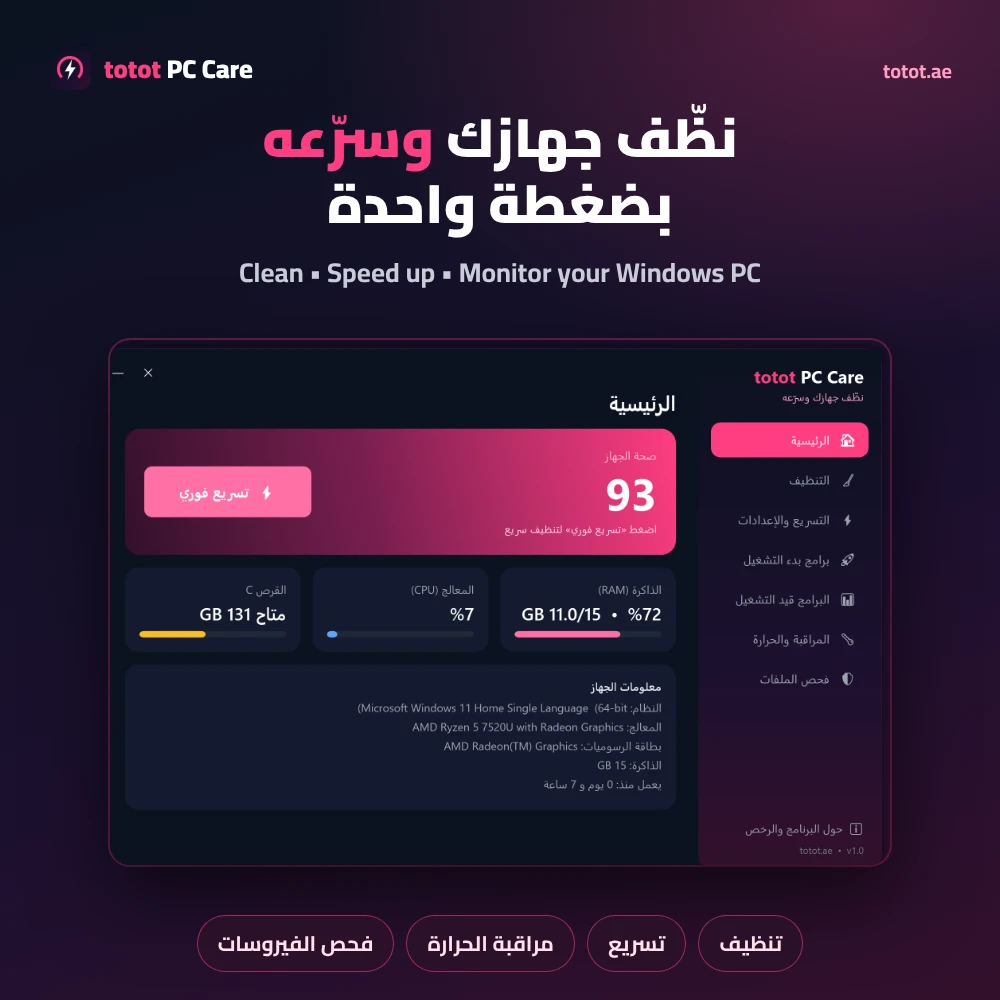
Table of Contents
- What the PC Cleaner and Optimizer does in one click
- Cleaning that leaves your files alone
- Performance tweaks you can undo
- Startup apps and running programs
- Live temperatures in the PC Cleaner and Optimizer
- On-screen counter over your games
- Windows debloat with one-click undo
- Game Boost, weekly clean and video enhancement
- Uninstall programs completely, leftovers included
- Virus scan and large file finder
- Who This Is Not For
- Instant delivery after checkout
- Technical Specifications
- FAQ
What the PC Cleaner and Optimizer does in one click
The home screen gives your PC a health score and keeps RAM, CPU and drive C usage updating in front of you, next to a summary of your Windows version, processor, graphics, memory and uptime. Press Instant Boost and the PC Cleaner and Optimizer clears your user temp folder, the Windows temp folder, the Delivery Optimization cache and old error reports, then flushes the DNS cache, and tells you exactly how much space came back. When Windows has been running for more than three days without a restart, the home screen says so, because a restart is still the fastest free speed-up there is.
Cleaning that leaves your files alone
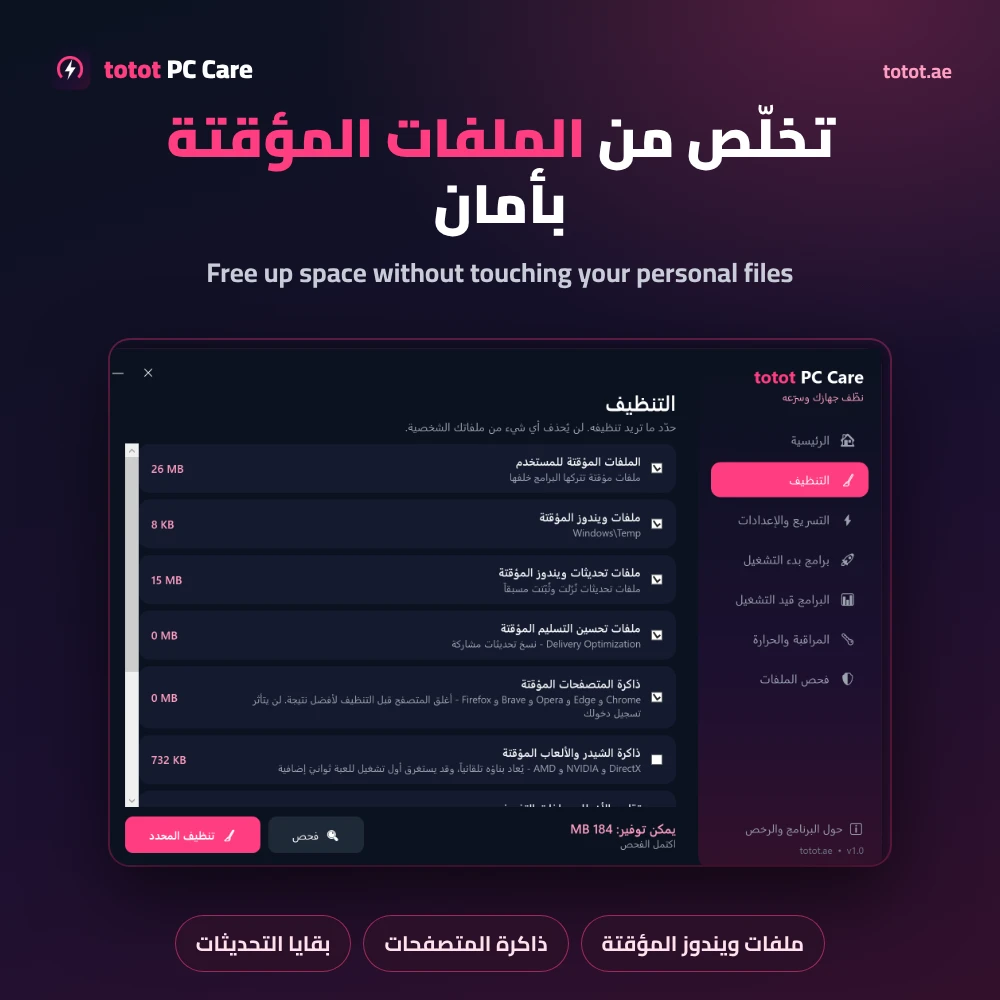
The Cleaning section of the PC Cleaner and Optimizer scans ten categories and shows the size of each one before anything is removed: user temporary files, Windows temporary files, the Windows Update download cache, Delivery Optimization files, browser caches for Chrome, Edge, Opera, Brave and Firefox, DirectX, NVIDIA and AMD shader caches, error reports and crash dumps, the thumbnail cache, old Windows log files and the Recycle Bin. You tick what goes. The shader cache, thumbnails and Recycle Bin start unticked, since emptying them has side effects you may not want.
Your Documents, Desktop, Pictures and Downloads folders are not part of any category the PC Cleaner and Optimizer touches. Browser cleaning touches cache folders only, so your sign-ins and saved passwords stay where they are. Files that Windows is using at that moment are skipped rather than forced.
Performance tweaks you can undo
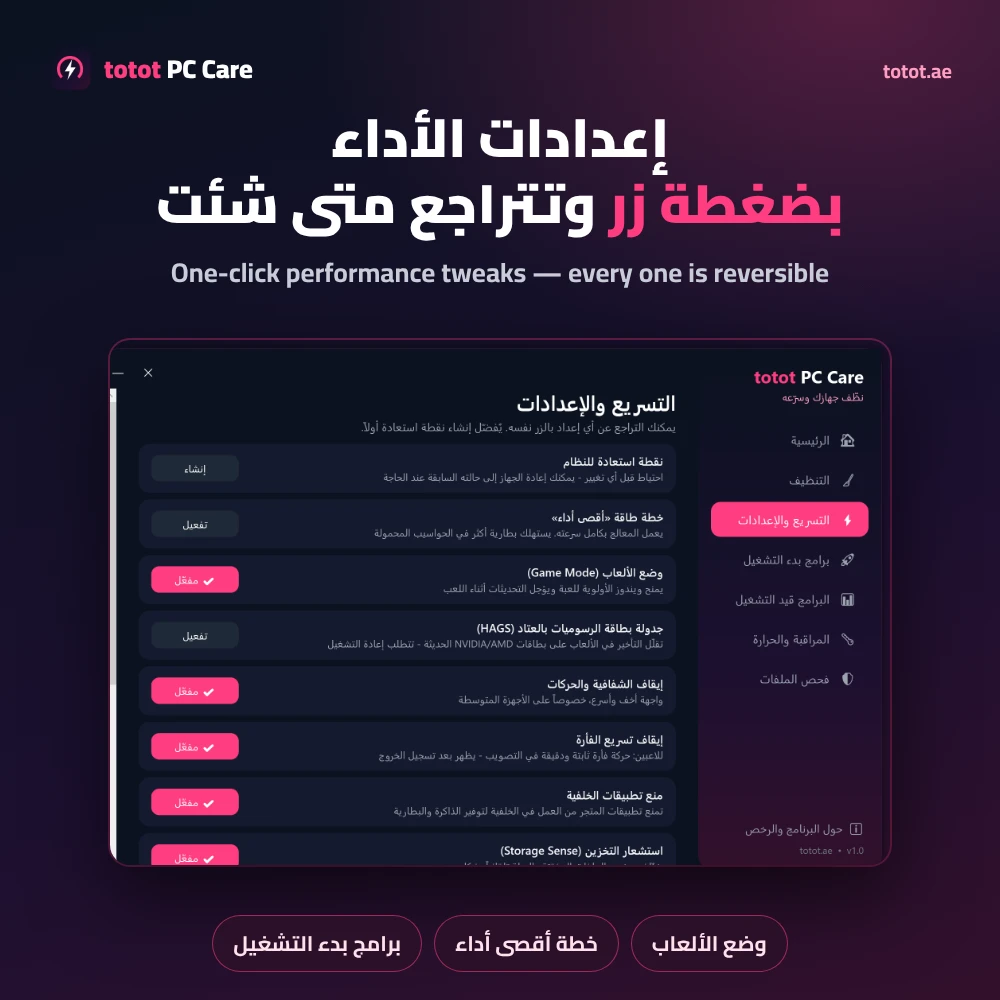
Every tweak in the PC Cleaner and Optimizer shows its current state, and the same button switches it back. The list covers the Ultimate Performance power plan, Windows Game Mode, hardware-accelerated GPU scheduling (HAGS), turning off transparency and window animations, turning off mouse acceleration for steadier aim, blocking Microsoft Store apps from running in the background, and Storage Sense. The first button on the page creates a Windows restore point, so you have a way back before you change anything.
Below the tweaks sit four maintenance tools that use Windows’ own utilities: a DNS cache flush, drive optimisation (TRIM on SSDs, defragmentation on hard drives), a DISM plus SFC system file repair, and a cleanup of leftover Windows Update components. These are settings Windows already has; Totot PC Care puts them on one page with plain explanations. They make a slow PC feel lighter, but they will not turn an entry-level laptop into a gaming machine.
Startup apps and running programs
The startup manager in this PC Cleaner and Optimizer lists every program that launches with Windows, from the registry Run entries for your account and for all users and from the Startup folders, and turns each one on or off with one click. It uses the same switch as Task Manager, so the change shows after your next restart and can be reversed at any time. The running programs page shows the 15 apps using the most memory, grouped with their process count, with an End button for anything you do not need right now. Core Windows processes are kept off this list.
Live temperatures in the PC Cleaner and Optimizer
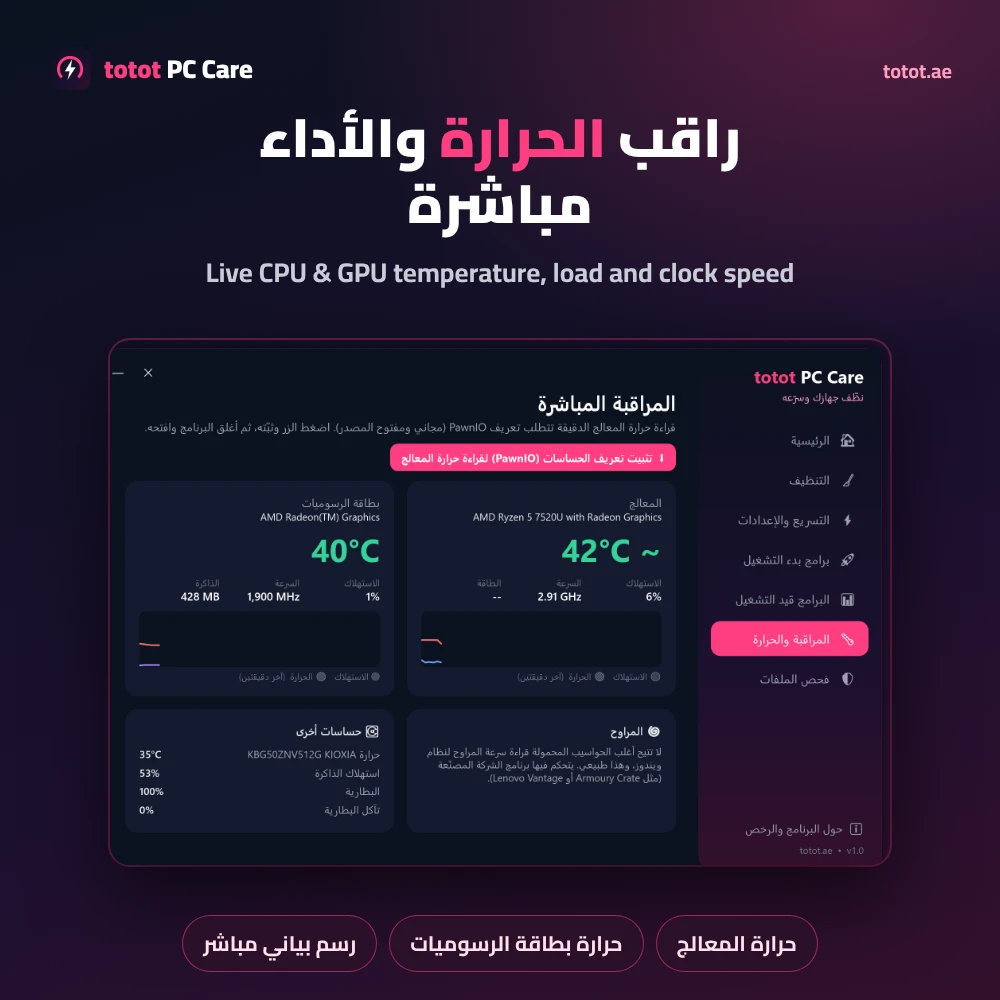
The monitoring page refreshes every two seconds. For the processor it shows temperature, load, real clock speed and package power; for the graphics card it shows temperature, load, clock and memory in use, each with a two-minute graph. It also lists fan speeds where your motherboard reports them, SSD temperature, and battery charge and wear. Sensor readings come from the open-source LibreHardwareMonitor library.
Some processors, including many AMD Ryzen laptops, need the free PawnIO driver before Windows allows an exact CPU temperature reading. A button inside the app downloads its official installer. Until it is installed, the app shows an approximate reading from Windows’ thermal zone, marked with a ~ sign. Most laptops do not expose fan speed to Windows at all; that is controlled by the maker’s own software.
On-screen counter over your games
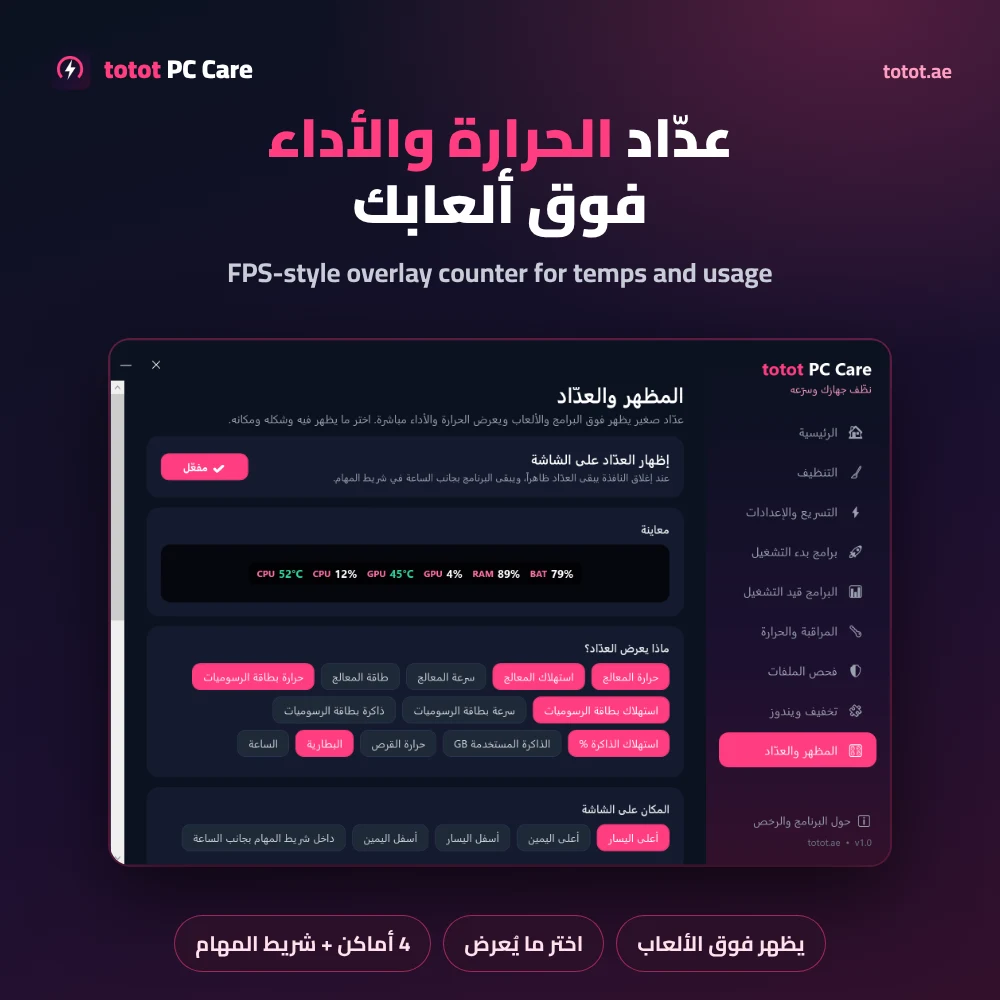
The Appearance and Counter page turns on a small FPS-style counter that stays on top of your apps and full-screen games in borderless mode. You choose what it shows: CPU temperature, CPU load, CPU clock and power, GPU temperature, GPU load, clock and memory, RAM percentage or used GB, drive temperature, battery and the clock. Put it in any of the four screen corners or next to the clock on the taskbar. Clicks pass straight through it, so it never gets in the way of your mouse. When you close the main window, the counter keeps running and the PC Cleaner and Optimizer waits in the system tray.
Windows debloat with one-click undo
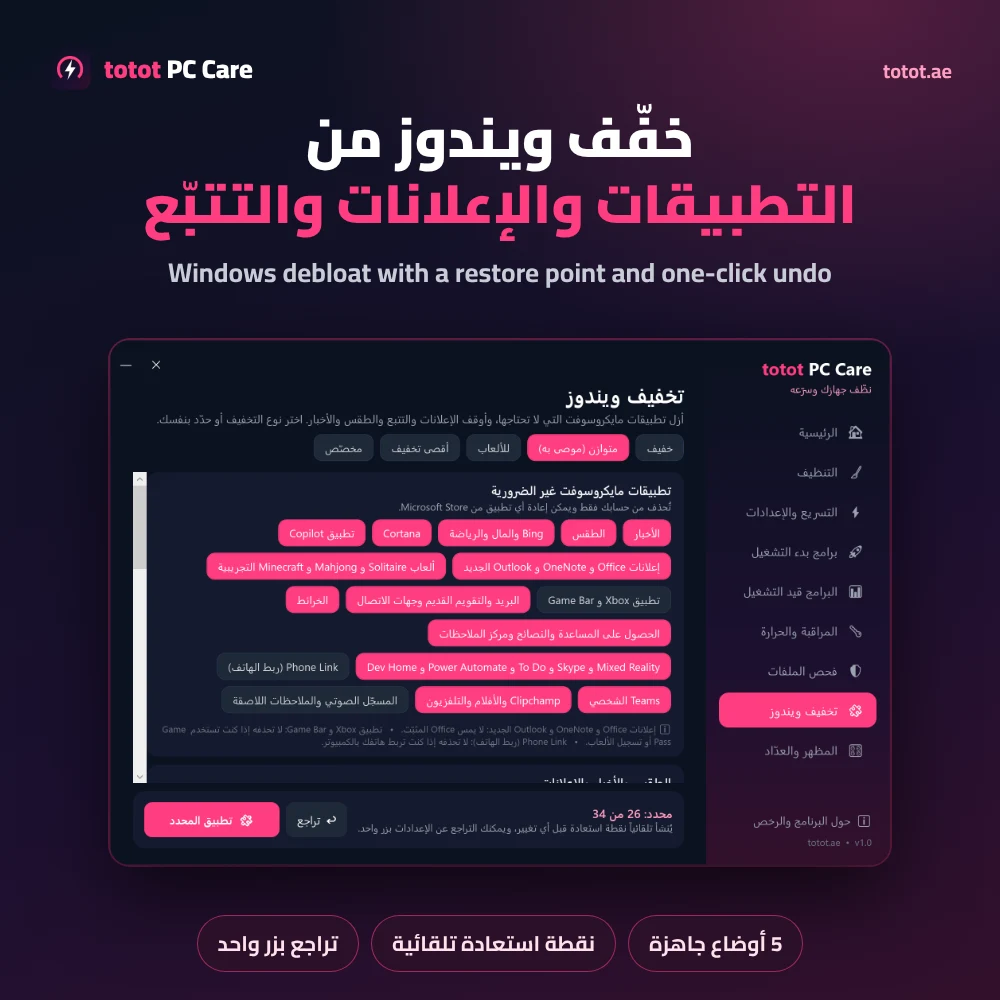
The Windows debloat page removes Microsoft apps most people never open, such as News, Weather, Bing, Copilot, Office ads, Solitaire and Clipchamp, and switches off advertising IDs, telemetry, tips, web results in the Start menu and the Widgets board. Pick one of five profiles, Light, Balanced, Gaming, Maximum or Custom, or tick each item yourself. Before any change the PC Cleaner and Optimizer creates a restore point and saves a backup of every setting it touches, so the Undo button puts things back. Removed apps can also be reinstalled from the Microsoft Store at any time.
Game Boost, weekly clean and video enhancement
Version 1.1 of the PC Cleaner and Optimizer adds three tools. Game Boost on the home screen switches to full CPU performance, turns on Windows Game Mode and, after asking you, closes background apps such as OneDrive, Teams, Skype and Phone Link. Press it again when you finish playing and your previous power plan comes back. Weekly auto clean creates a Windows scheduled task that removes temporary files older than one day once a week and shows a small notification with the space it freed.
The Video enhance page detects your graphics card and opens the right setting: RTX Video Super Resolution on NVIDIA GeForce RTX cards, Video Upscale in AMD Software on Radeon RX 7000 and newer, and the Windows option that processes video automatically on other PCs. The upscaling itself runs on the graphics card, so a 720p stream looks sharper without loading your CPU. The app also shows a notice on the home screen when a newer version is ready to download from My Account.
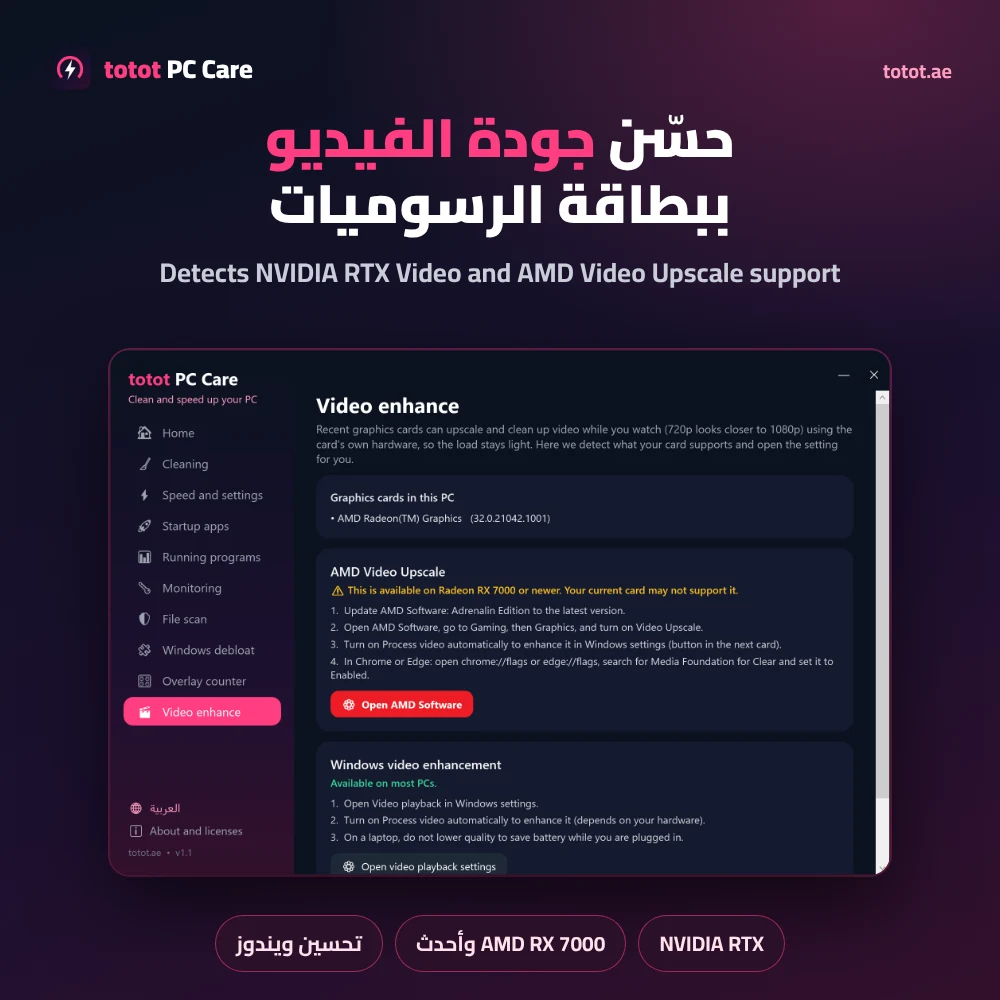
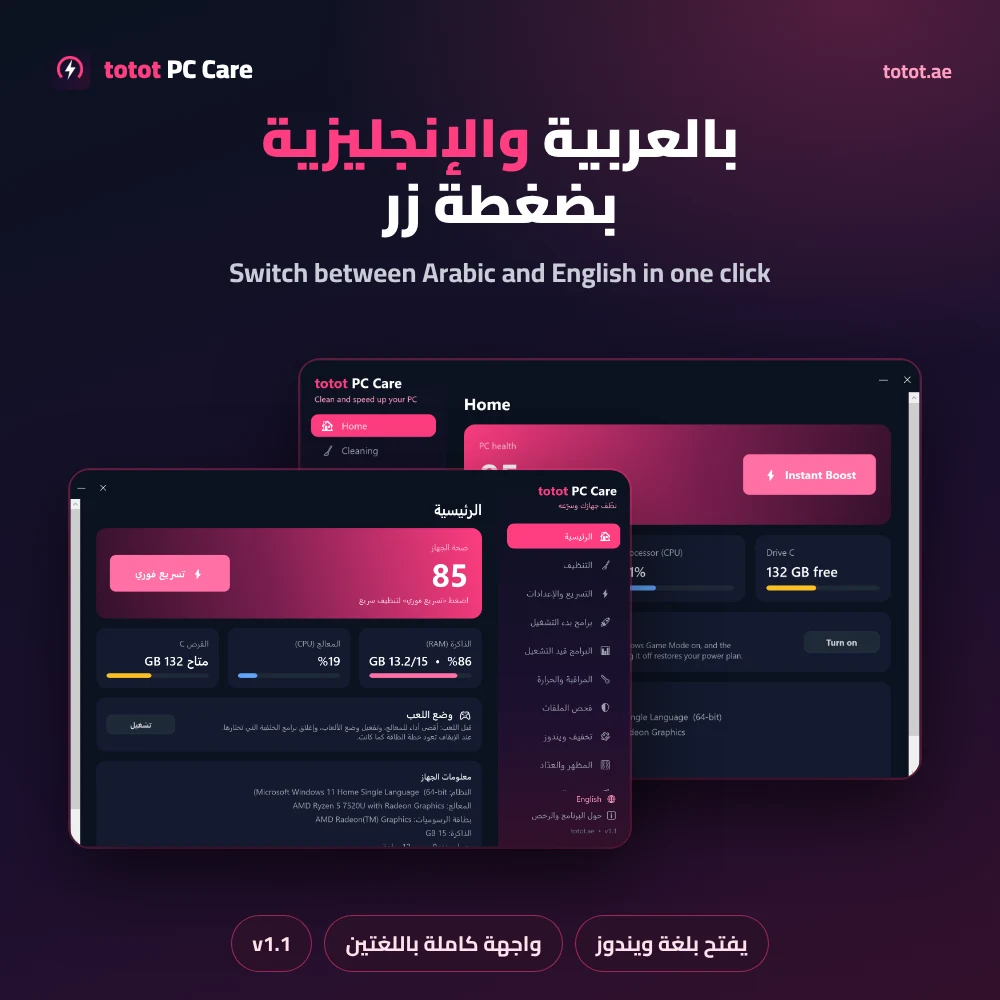
The whole interface is available in Arabic and English. The app opens in your Windows language, and the globe button at the bottom of the sidebar switches language in one click.
Uninstall programs completely, leftovers included
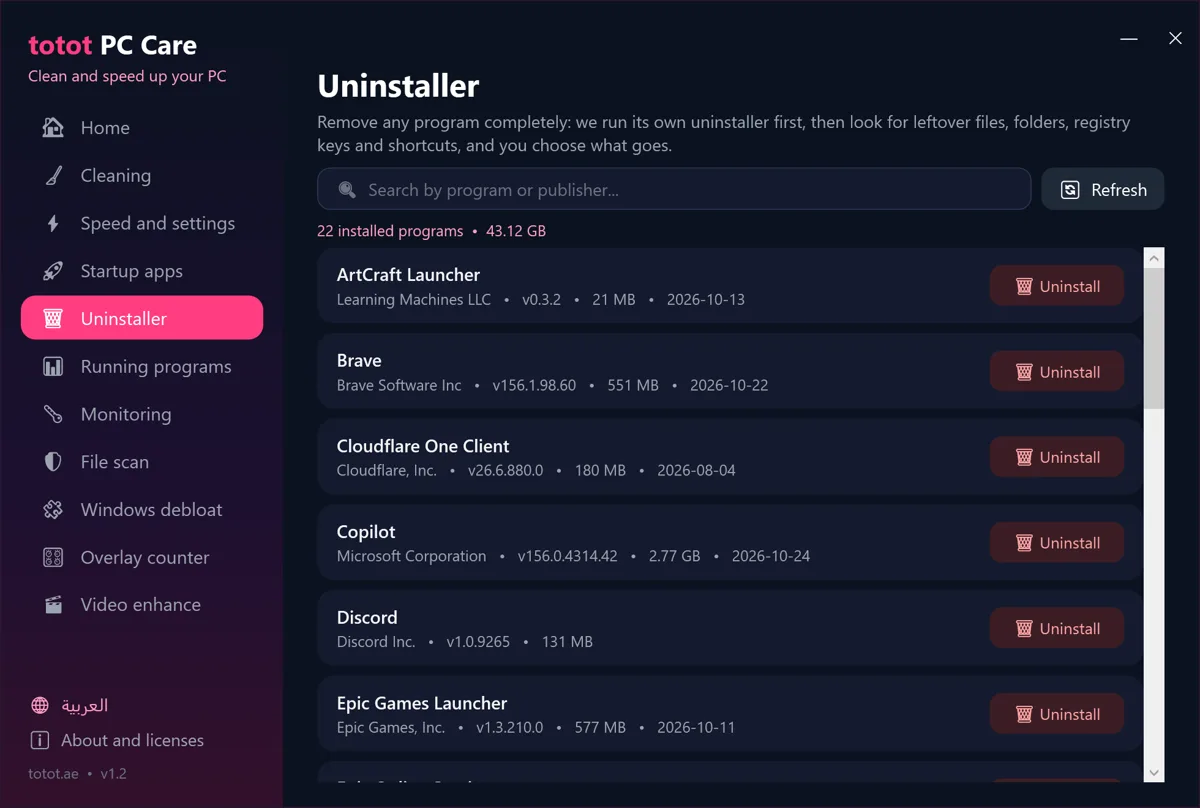
The Uninstall Programs page lists every installed program with its publisher, version, size and install date, and a search box finds any program by name or company. Press Remove and the PC Cleaner and Optimizer runs the program’s own uninstaller first, then searches for what it usually leaves behind: leftover folders, registry keys and scheduled tasks. You see the list of leftovers and choose what to delete. Leftover files go to the Recycle Bin and registry keys are backed up before removal, so nothing is lost by mistake. Windows debloat also removes the desktop version of the Copilot app, not only the Store version.
Virus scan and large file finder
File Scan in the PC Cleaner and Optimizer runs the Microsoft Defender engine that is already part of Windows. Choose a quick scan, a full scan or a single folder; the app updates virus definitions first, then lists any threats found and shows whether real-time protection is on. If another antivirus is your main protection, Defender runs in passive mode and the scan may not start. The large file finder lists the 50 biggest files over 100 MB on drive C, in your user folder or in a folder you pick, with a button to open each file’s location and a Delete button that moves it to the Recycle Bin.
Who This Is Not For
- Video upscaling needs a supported graphics card: NVIDIA GeForce RTX, or AMD Radeon RX 7000 or newer.
- It runs on Windows only. There is no version for macOS, Linux or Android.
- It needs administrator rights, so it will not run on a locked work or school PC.
- It is not code-signed yet. The first time you open it, Windows may show “Windows protected your PC”; choose More info, then Run anyway.
- It is not an antivirus. Virus scanning uses Microsoft Defender, which is already on your PC.
- Fan speeds are unavailable on most laptops, and some CPUs need the free PawnIO driver for an exact temperature.
- Windows 10 versions older than 1809 are not supported, because the app needs .NET Framework 4.7.2.
Instant delivery after checkout
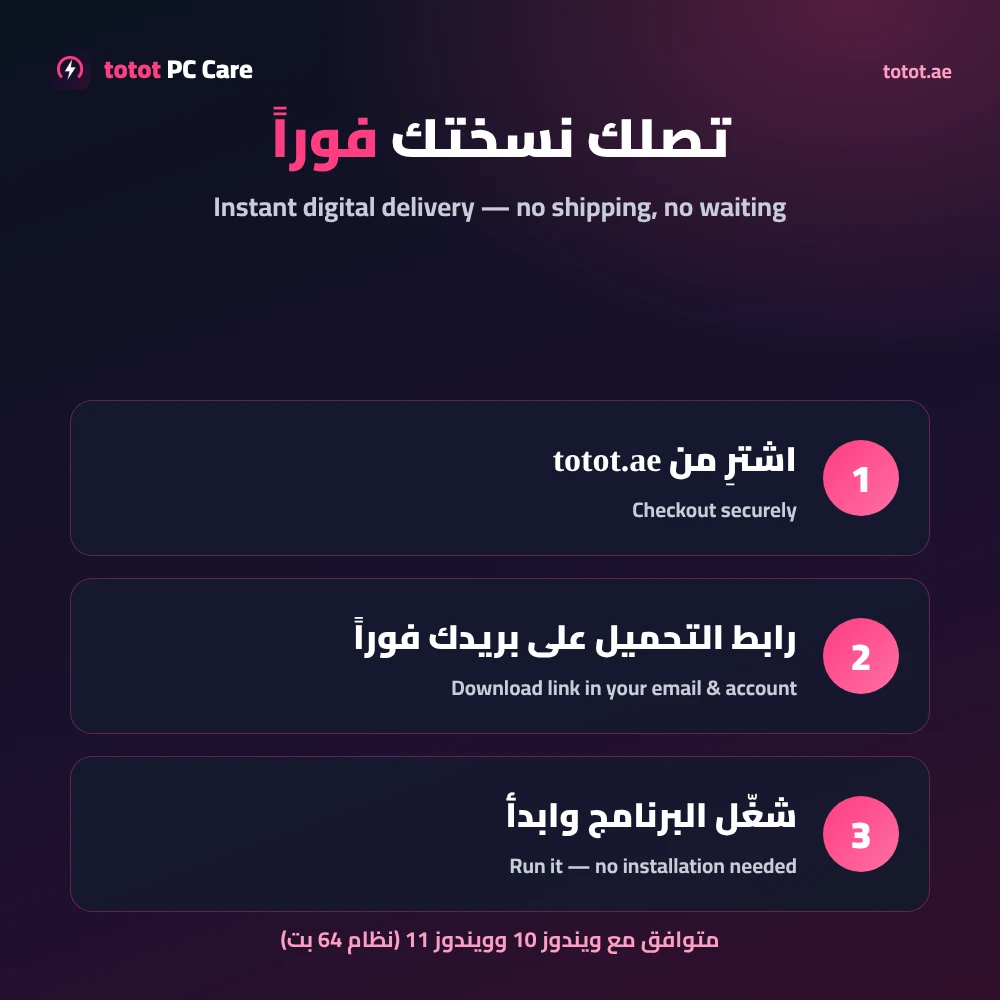
This is a digital product, so nothing ships. As soon as payment goes through, the download link appears on the order confirmation page, in My Account under Downloads, and in your order email. The PC Cleaner and Optimizer ZIP file is about 2.3 MB and holds Totot PC Care.exe plus a read-me in Arabic and English. Extract it, double-click the program and approve the administrator prompt. There is no installer. If Totot PC Care does not run on a PC that meets the requirements, contact us within 14 days under our return and refund policy. Support is at support@totot.ae.
How to install the PC Cleaner and Optimizer
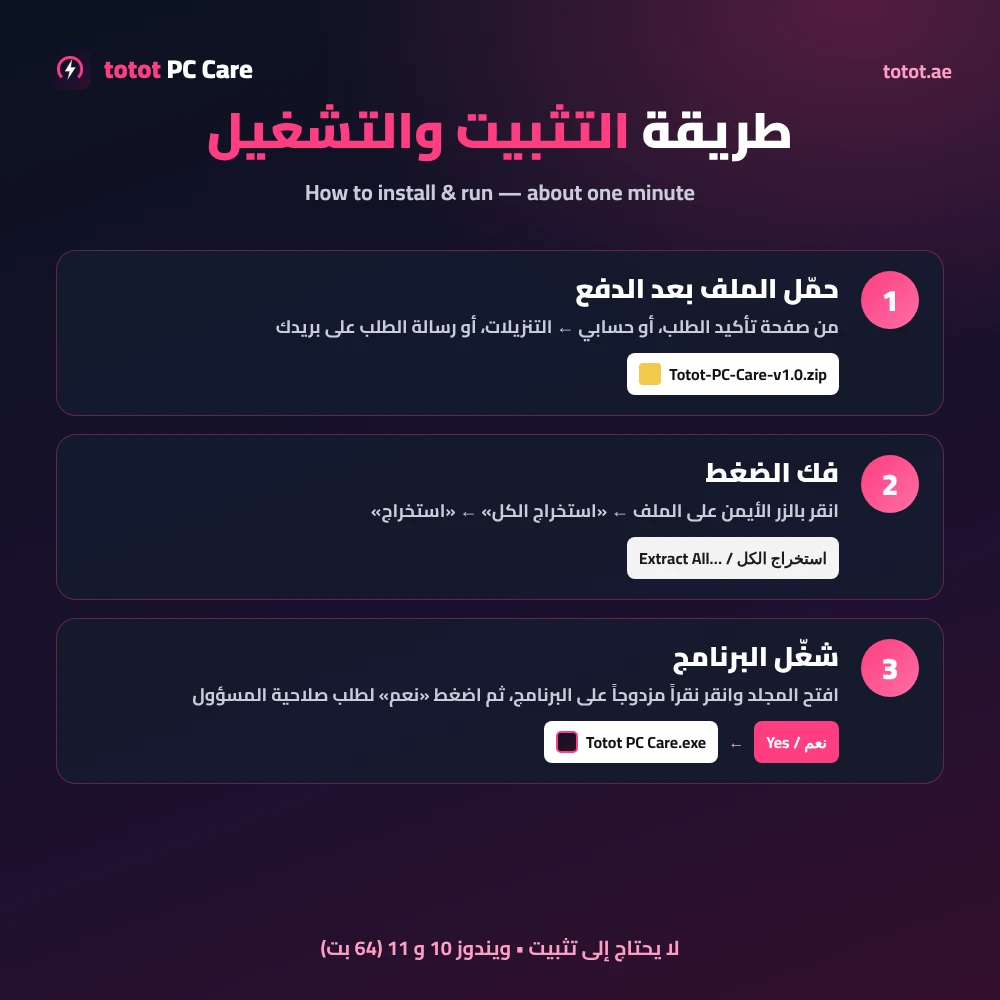
Download the ZIP, right-click it and choose Extract All, then double-click Totot PC Care.exe inside the folder and choose Yes on the administrator prompt.
If Windows shows a message
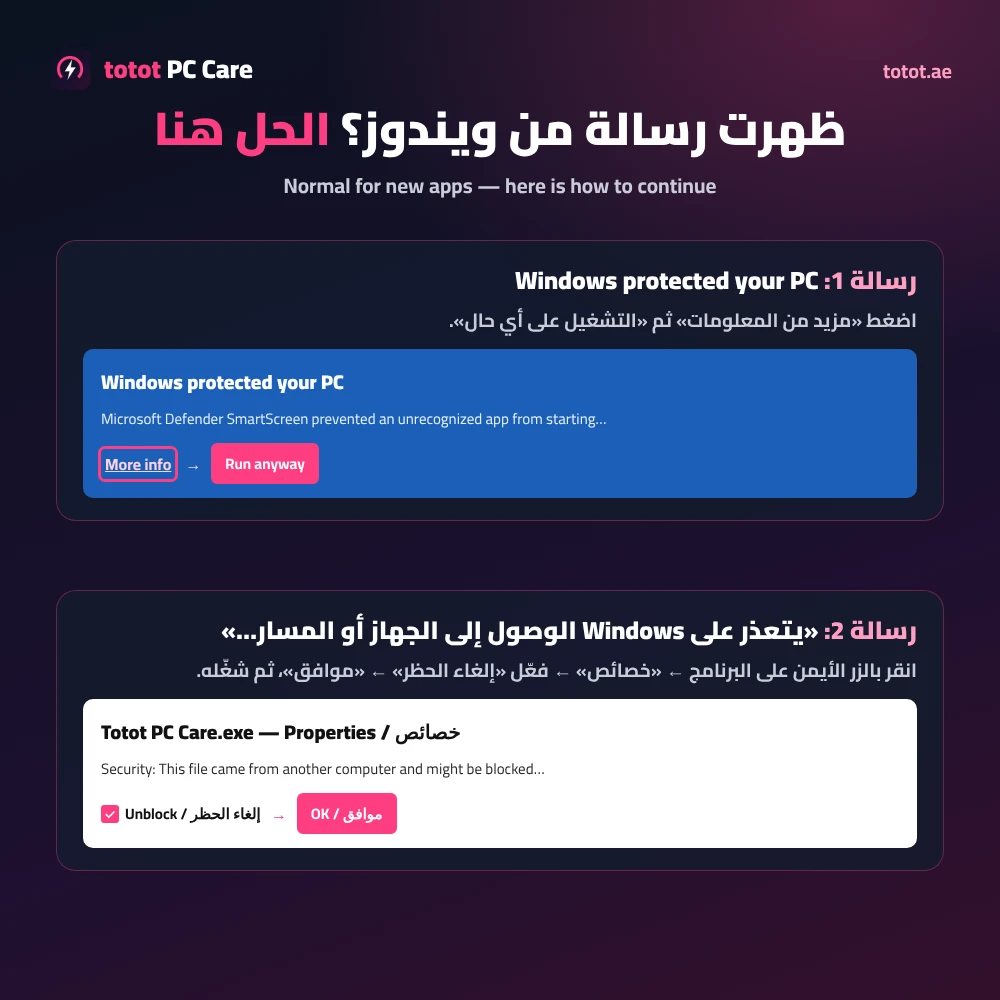
If you see “Windows protected your PC”, choose More info, then Run anyway. If you see “Windows cannot access the specified device, path, or file”, right-click Totot PC Care.exe, open Properties, tick Unblock, press OK and run it again. Both messages come from Windows checks on new apps downloaded from the internet that are not code-signed yet.
Technical Specifications
- Product: Totot PC Care v1.2
- Type: PC Cleaner and Optimizer, digital download, portable app with no installation
- Operating system: Windows 10 (version 1809 or newer) and Windows 11, 64-bit
- Requirements: administrator rights and .NET Framework 4.7.2 or newer, built into supported Windows versions
- Interface language: Arabic and English
- Download size: about 2.3 MB (ZIP)
- Sections: Home, Cleaning, Speed and Settings, Startup Apps, Running Programs, Monitoring, File Scan, Windows Debloat, Appearance and Counter, Video Enhance
- Sensor engine: LibreHardwareMonitor (Mozilla Public License 2.0), optional PawnIO driver
- Virus scanning: Microsoft Defender, built into Windows
- Delivery: download link immediately after payment
- Support: support@totot.ae
FAQ
Does the PC Cleaner and Optimizer delete my personal files?
No. It only cleans temporary and cache folders. Large files you choose to remove go to the Recycle Bin, not straight to deletion.
Do I need to install the PC Cleaner and Optimizer?
No. Extract the ZIP and double-click Totot PC Care.exe. It runs without an installer.
Will Windows show a warning the first time?
Yes, it can. Because the app is not code-signed yet, SmartScreen may show “Windows protected your PC”; choose More info, then Run anyway. If Windows says it cannot access the file, open Properties, tick Unblock and press OK.
Does it work on Windows 7 or Windows 8?
No. It supports Windows 10 version 1809 or newer and Windows 11, 64-bit.
Can I undo the PC Cleaner and Optimizer speed tweaks?
Yes. Every tweak uses the same button to switch back, and you can create a Windows restore point from the same page before changing anything.
Do I need an extra driver to see my CPU temperature?
Yes, on some processors, including many AMD Ryzen laptops. The free PawnIO driver is needed, and the app has a button that downloads its official installer.
Is the interface available in English?
Yes. Since version 1.1 the app opens in your Windows language and switches between Arabic and English with one button.
Can I download it again later?
Yes. The link stays in My Account under Downloads, so you can download it again whenever you need.
Does the PC Cleaner and Optimizer replace my antivirus?
No. Its virus scan uses Microsoft Defender, the protection that already comes with Windows.



 No products in the cart.
Reviews
There are no reviews yet